 Rigworthy
The Best USB-C Hubs and Docking Stations in 2026
By Rigworthy Editorial Team · Updated July 28, 2026
Rigworthy is reader-supported: we may earn a commission if you buy through our links, at no cost to you. How we make money

There is a $40 device and a $400 device that both get filed under "USB-C hub," and the distance between them is where most people either overspend or come home let down. One is a bus-powered dongle that adds a few ports and drives a single monitor; the other is a powered docking station that charges your laptop, runs dual screens, and turns a closed laptop into a full desktop over one cable. They look similar in a product photo and are nothing alike in use, and the marketing does very little to help you tell them apart.
This guide sorts six of the best by the only questions that actually decide the buy: do you need more ports or a real single-cable desk, how many external monitors do you truly need, and does your laptop — especially if it's a MacBook — even support them? We've been blunt about the traps that cause returns: the MacBook dual-monitor limit, the difference between native Thunderbolt video and DisplayLink software, and the 4K@30-vs-60 sleight of hand on cheap hubs. Specs reflect what manufacturers publish as of mid-2026; where a number is unpublished or sources disagree, we've said so instead of inventing one.
Our top picks at a glance
- 1
- 2
- 3
- 4
- 5
- 6
How we chose
- The honest line between a bus-powered hub and a real single-cable dock
- How many external monitors it truly drives — and the MacBook dual-display trap
- Native video (Thunderbolt/USB4) vs. DisplayLink software, and what each costs you
- Host charging wattage, and whether it needs its own power brick
- Port count and speed that match a desk vs. a bag — priced from ~$40 to ~$400
Our picks come from spec research, long-term owner feedback, and category expertise — not sponsorships. Read the full methodology.
Compared side by side
| Product | Award | Interface | Max displays | Typical price |
|---|---|---|---|---|
| CalDigit TS4 | Best Overall | Thunderbolt 4 | Dual (6K/4K) or single 8K | $350–400 |
| OWC Thunderbolt Dock (11-Port) | Best Value Dock | Thunderbolt 4 | Dual (host-dependent) | $200–230 |
| Satechi Thunderbolt 4 Dock | Best for MacBook | Thunderbolt 4 | Dual (Pro/Max), single on base Air | $210–300 |
| Plugable UD-6950PDH | Best for Dual Monitors | DisplayLink | Dual 4K@60 (any laptop) | ~$200 |
| Anker 555 USB-C Hub (8-in-1) | Best Budget | USB 3.2 (10Gbps) | Single 4K@60 | ~$40 |
| HyperDrive Next 6-Port USB-C Hub | Best for Travel | USB 3.2 (10Gbps) | Single 4K@60 | ~$52 |
1. Best Overall
CalDigit TS4
Typically $350–400
- One-cable desks
- Thunderbolt laptops
- Maximum ports
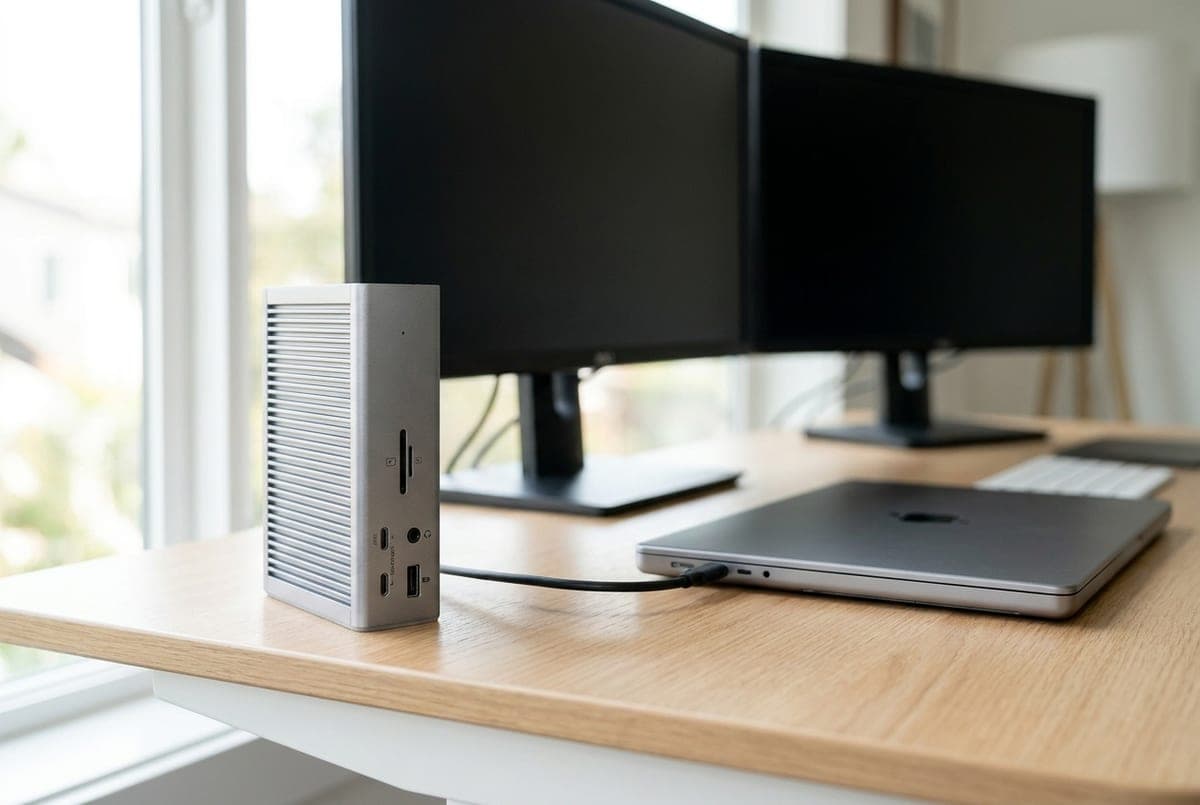
The TS4 is the dock to buy if you want your desk to run on one cable and never think about ports again. It's a Thunderbolt 4 station with 18 connections — three Thunderbolt 4 ports, three more USB-C at 10Gbps, five USB-A at 10Gbps, 2.5-gigabit Ethernet, UHS-II SD and microSD readers, and three separate audio jacks — and it delivers 98W back to the laptop, enough to charge a 16-inch MacBook Pro at full tilt while everything else stays connected. Plug one Thunderbolt cable into your machine and the whole desk — monitors, drives, dock, network, charge — comes alive at once. On a Thunderbolt laptop it drives a single 8K display, or dual 6K/4K screens depending on your machine.
Two honest caveats keep it from being a blind buy. First, its only dedicated video output is a single DisplayPort 1.4 — there is no HDMI on the dock, so an HDMI monitor needs a cheap adapter or you drive the second screen off a Thunderbolt port. Second, it ships with a large 230W external power brick that takes up as much room under the desk as some mini PCs. Neither is a dealbreaker for a permanent workstation, and nothing else here matches its port count, charging, or build. If you have a Thunderbolt or USB4 laptop and want the last dock you'll buy for years, this is it.
What we like
- 18 ports, 2.5GbE, and UHS-II card readers — the most complete dock here
- 98W charging runs even a 16-inch MacBook Pro at full power
- Rock-solid aluminum build, stands upright to save desk space
Worth knowing
- DisplayPort only — no HDMI port on the dock itself
- Bulky 230W power brick, and the priciest pick here
- Interface
- Thunderbolt 4
- Video out
- 1× DisplayPort 1.4 + Thunderbolt
- Displays
- Single 8K@30, or dual 6K/4K
- Host charging
- 98W (230W brick)
- Ethernet
- 2.5GbE
2. Best Value Dock
OWC Thunderbolt Dock (11-Port)
Typically $200–230
- A real dock on a budget
- Thunderbolt / USB4 laptops
- Clean desks
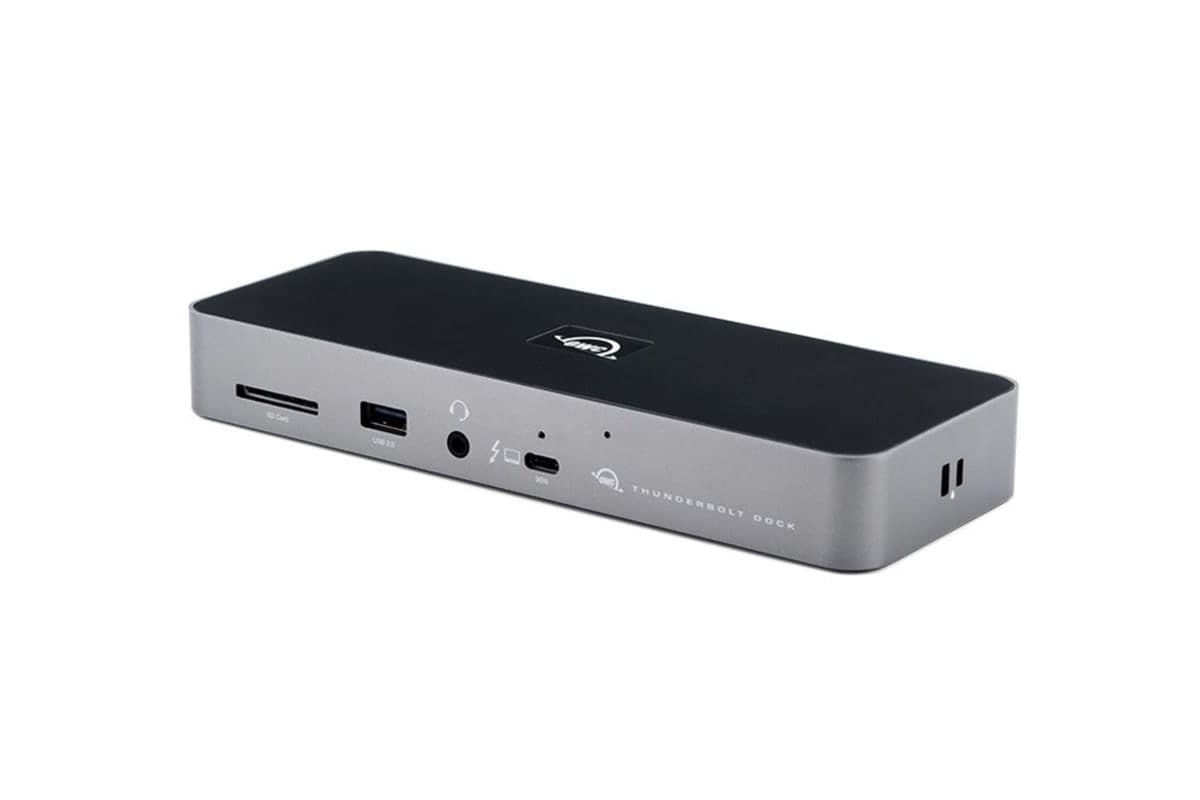
If you want a genuine single-cable Thunderbolt dock without paying flagship money, the OWC 11-Port is the value play. It gives you three Thunderbolt 4 ports, four USB-A (three at 10Gbps plus a slower charging port), gigabit Ethernet, a UHS-II SD reader, and a headphone jack, and it charges the host at 96W over one cable. In day-to-day use it does the same core job as the CalDigit — one cable to dock, charge, and connect a whole desk — for roughly a hundred dollars less, which is why it's frequently the cheapest real dock worth buying.
The savings show up in two places. There are no dedicated HDMI or DisplayPort outputs — you drive monitors from the Thunderbolt ports, so an HDMI screen needs an adapter — and the Ethernet is gigabit rather than 2.5GbE. Display support tracks your laptop: a Thunderbolt PC or an Apple Silicon Pro/Max chip runs dual monitors, while a base M-series MacBook is still capped at one native external screen (a hardware limit, not the dock's). OWC now also sells a pricier Thunderbolt 5 version, so double-check which model you're adding to the cart. For most people who just want a solid, honest dock, this is the smart-money choice.
What we like
- Real single-cable Thunderbolt docking for the lowest price here
- 96W host charging and three Thunderbolt 4 ports
- Compact, well-built, and widely available
Worth knowing
- No native HDMI/DisplayPort — video runs off the Thunderbolt ports
- Gigabit Ethernet only, and a newer TB5 model muddies the lineup
- Interface
- Thunderbolt 4
- Video out
- Thunderbolt ports (adapter for HDMI)
- Displays
- Dual 4K@60 (host-dependent)
- Host charging
- 96W (135W brick)
- Ethernet
- 1GbE
3. Best for MacBook
Satechi Thunderbolt 4 Dock
Typically $210–300
- Mac-matched desks
- MacBook Pro / Air
- Design-conscious setups
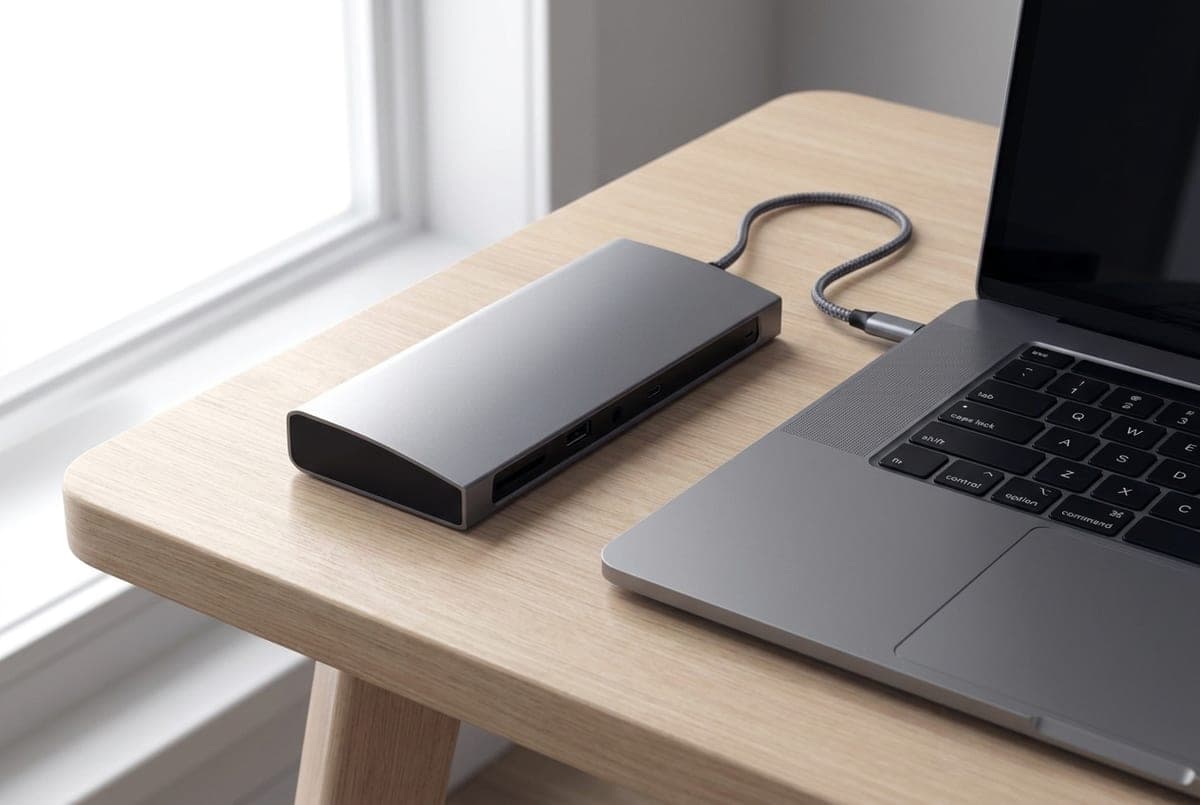
Satechi's Thunderbolt 4 dock is the one that looks like it came in the same box as your MacBook. The space-gray aluminum matches Apple's finish exactly, and the layout is clean: four Thunderbolt 4 ports (one to the host at 96W, three downstream), three USB-A at 10Gbps plus a USB-A charging port, gigabit Ethernet, a UHS-II SD reader, and a headphone jack. It charges the laptop at 96W over a single Thunderbolt cable and drives up to two 4K/60 displays on machines that support them. For a Mac user who cares that the desk looks coherent, it's the obvious pick.
Here's the trap to understand before you buy, because it catches Mac owners constantly: this dock does not add monitor support your Mac doesn't already have. It uses native Thunderbolt video, so a base M1, M2, or M3 MacBook Air still drives only one external display through it — the dock can't work around Apple's single-display chip limit. If you specifically need dual monitors on a base-chip Air, you want a DisplayLink dock instead (Satechi sells a separate multi-display model, and our dual-monitor pick below does exactly this). Buy this one for a Pro/Max Mac, or for a single beautiful 4K/5K screen plus a tidy, matching desk.
What we like
- Aluminum finish that matches MacBooks perfectly
- 96W charging, four Thunderbolt 4 ports, UHS-II SD reader
- Clean native video for a single 4K/5K or dual on Pro/Max Macs
Worth knowing
- Native video won't give a base MacBook Air dual monitors
- Easy to confuse with Satechi's separate DisplayLink dock
- Interface
- Thunderbolt 4
- Video out
- Thunderbolt ports (native)
- Displays
- Dual 4K@60 (Pro/Max; base Air = 1)
- Host charging
- 96W (135W brick)
- Ethernet
- 1GbE
4. Best for Dual Monitors
Plugable UD-6950PDH
Typically around $200
- Dual monitors on any laptop
- Base MacBook Air owners
- Office productivity
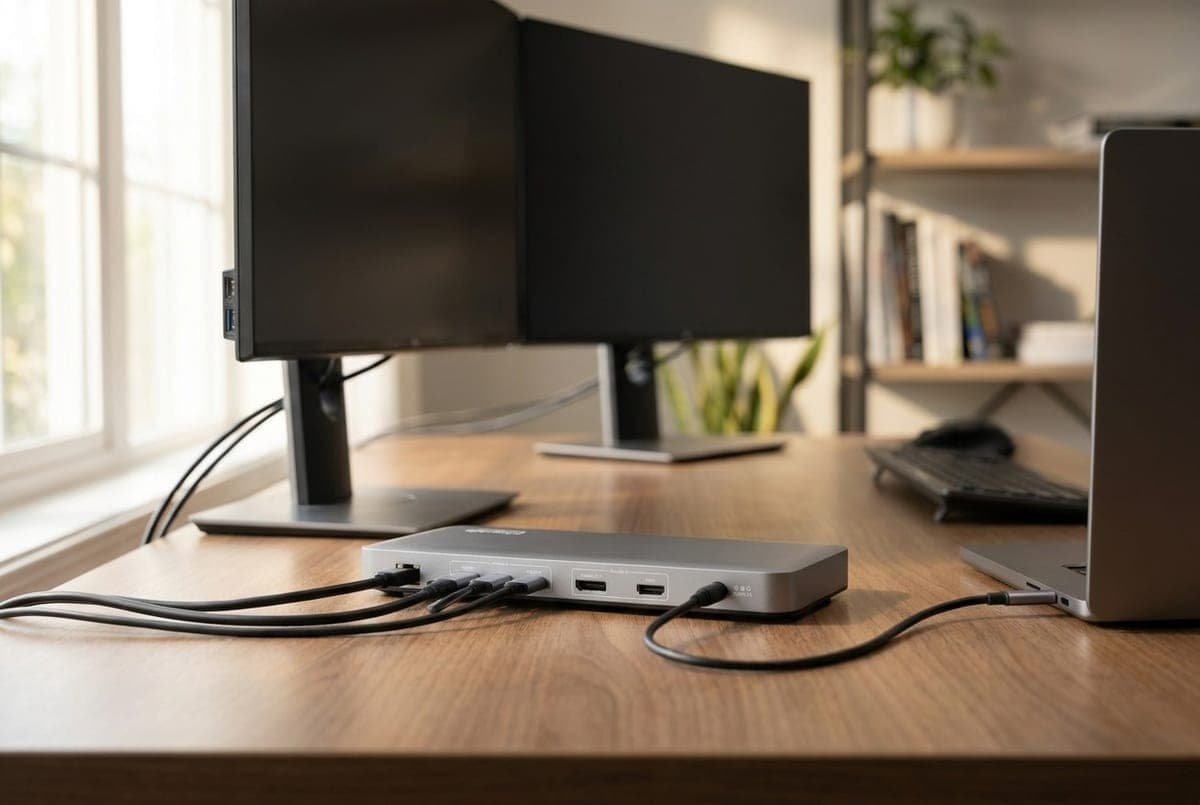
This is the dock to buy when the whole point is two external monitors and your laptop won't otherwise cooperate. The UD-6950PDH uses DisplayLink — a software driver that renders extra displays and sends them over USB — so it can run dual 4K/60 screens on hardware that natively supports only one, including a base M1/M2/M3 MacBook Air. Each of its two video outputs works as HDMI 2.0 or DisplayPort 1.2, and it adds four USB-A ports, a front USB-C, gigabit Ethernet, UHS-II card readers, and 100W charging to the laptop. For a home office built around a productive two-screen layout, it solves the exact problem native docks can't.
DisplayLink is a real tool with real trade-offs, and honesty matters here. It needs a driver installed, it leans on your CPU (a few percent overhead), it drains laptop battery a little faster, and it caps at 60Hz — so it's fine for spreadsheets, email, and code, but not the pick for gaming or color-critical work. The catch most people don't see coming: DisplayLink does not pass HDCP, so protected video from Netflix, Disney+, or Apple TV+ often won't play on a monitor connected through it (run those off the laptop's own screen). Accept those limits and it's the most reliable way to get two extended displays on a stubborn laptop — the reason it's a perennial office favorite.
What we like
- Drives dual 4K@60 even on laptops limited to one native display
- Two flexible outputs (HDMI 2.0 or DisplayPort 1.2 each)
- 100W charging, gigabit Ethernet, UHS-II card readers
Worth knowing
- DisplayLink adds a driver, CPU load, and a 60Hz cap
- No HDCP — protected streaming apps often won't play through it
- Interface
- DisplayLink (USB 3.0)
- Video out
- 2× HDMI 2.0 / DisplayPort 1.2
- Displays
- Dual 4K@60 (any host)
- Host charging
- 100W (130W brick)
- Ethernet
- 1GbE
5. Best Budget
Anker 555 USB-C Hub (8-in-1)
Typically around $40
- Adding ports cheaply
- One external monitor
- Buyers who don't need a dock
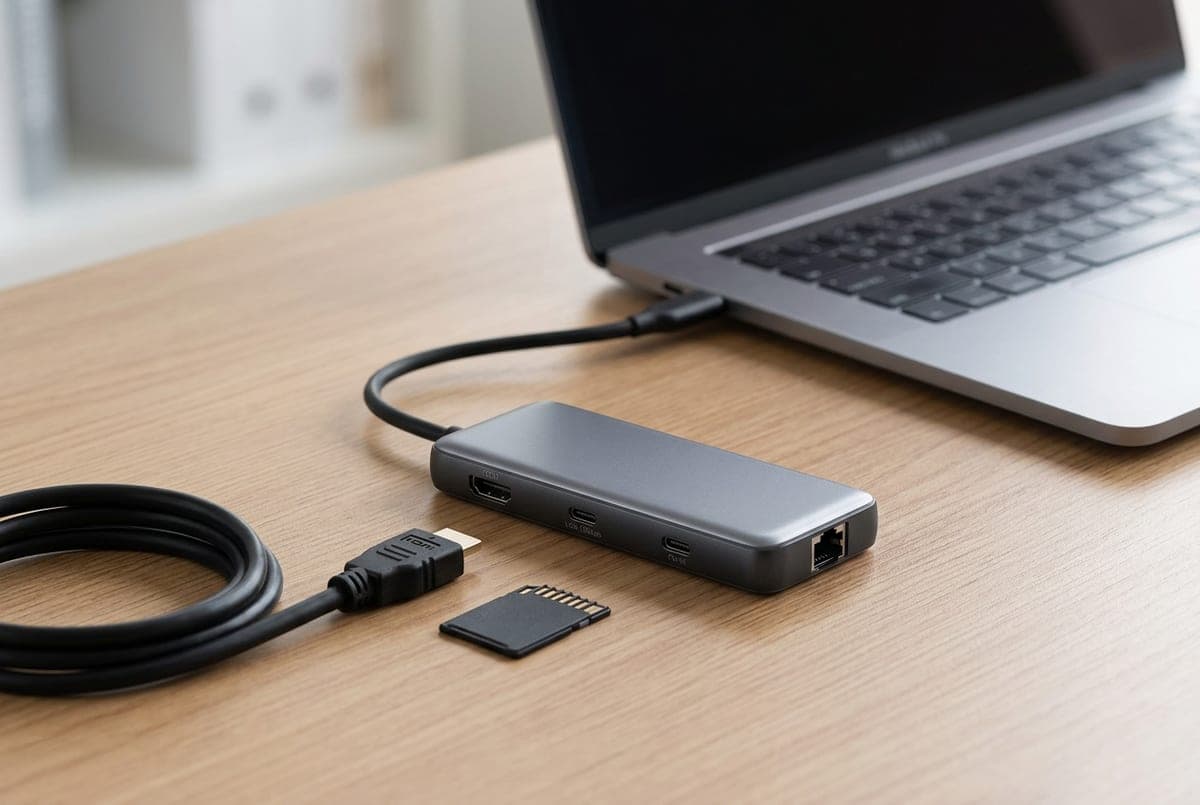
Most people who type "USB-C hub" into a search box don't need a docking station at all — they need a few more ports, and the Anker 555 is where the smart money goes. For around $40 it's a bus-powered 8-in-1 that adds HDMI at a proper 4K/60, two USB-A and one USB-C all at 10Gbps, gigabit Ethernet, and SD/microSD readers, plus a 100W USB-C passthrough port so you can keep the laptop charging through the hub. It's slim, travels in a pouch, and does the everyday job — one monitor, wired network, fast storage, keyboard and mouse — for a fraction of a dock's price.
Know exactly what "hub" means so you're not disappointed. This is not a dock and not Thunderbolt: it has a single HDMI output, so it drives one external monitor, not two. There's no separate power brick — it draws from the laptop and passes charge through, which means you lose roughly 15W of the 100W input to overhead (expect about 85W reaching the laptop). And it can't magically add displays your machine doesn't support. Buy it when the honest answer is "I just want more ports and one screen." For a huge share of buyers, that's the whole requirement — and paying dock money would be a waste.
What we like
- True 4K@60 HDMI, 10Gbps ports, and gigabit Ethernet for ~$40
- 100W passthrough keeps the laptop charging through the hub
- Slim, bus-powered, and travel-friendly — no brick to carry
Worth knowing
- Single HDMI — one external monitor only, not a dual-display dock
- Passthrough loses ~15W to overhead; not Thunderbolt bandwidth
- Interface
- USB 3.2 Gen 2 (10Gbps)
- Video out
- 1× HDMI 2.0 (4K@60)
- Displays
- Single external monitor
- Host charging
- 100W in / ~85W usable
- Ethernet
- 1GbE
6. Best for Travel
HyperDrive Next 6-Port USB-C Hub
Typically around $52
- Bags and backpacks
- Hybrid workers
- One-monitor hotel desks

When the priority is what fits in a laptop sleeve, the HyperDrive Next 6-Port is a genuinely pocketable hub that still covers the essentials. In a body just over four inches long it packs HDMI at 4K/60, two USB-A and one USB-C at 10Gbps, a 100W USB-C passthrough for charging, and a fast UHS-II SD reader. For a hybrid worker who plugs into a different desk each day — a monitor, a drive, a charger — it's a tidy, well-made travel companion that disappears into a bag.
The trade-offs are size-driven and worth naming. There's no Ethernet and no microSD, so it's a travel hub rather than a desk anchor, and like any bus-powered hub its passthrough loses a little to overhead (plan on roughly 85W reaching the laptop from a 100W charger). It's also priced at a brand premium — the Anker 555 above costs less and adds Ethernet and a microSD slot for the same core job. Choose the HyperDrive when compactness and finish genuinely matter to you; if you mostly work at one desk, the cheaper Anker is the better value.
What we like
- Very compact — a true throw-in-the-bag travel hub
- 4K@60 HDMI, 10Gbps ports, and 100W passthrough
- Fast UHS-II SD reader and a clean, durable build
Worth knowing
- No Ethernet or microSD, and a brand-premium price
- The cheaper Anker 555 does more for a desk
- Interface
- USB 3.2 Gen 2 (10Gbps)
- Video out
- 1× HDMI 2.0 (4K@60)
- Displays
- Single external monitor
- Host charging
- 100W in / ~85W usable
- Ethernet
- None
The verdict
If you want the last dock you'll buy for years and you have a Thunderbolt or USB4 laptop, the CalDigit TS4 is the pick — the most complete port array here, 98W charging, and a build that justifies the price. Want the same single-cable Thunderbolt experience for a hundred dollars less? The OWC Thunderbolt Dock is the value answer, and Mac owners who care that the desk looks coherent should get the finish-matched Satechi Thunderbolt 4 Dock — just remember that a native dock won't give a base MacBook Air a second monitor.
That MacBook limit is exactly why the Plugable UD-6950PDH exists: its DisplayLink engine drives dual 4K screens on laptops that natively support one, at the cost of a driver and no protected-streaming support. And if the honest truth is that you only need more ports and a single monitor, don't buy a dock at all — the Anker 555 does that job for around $40, with the ultra-compact HyperDrive Next as the travel version. A dock pairs naturally with a laptop stand for clamshell docking and an under-desk cable tray to keep that one-cable desk actually looking like one — that's the setup worth building toward.
Frequently asked questions
It comes down to power and displays. A USB-C hub is a bus-powered dongle that draws from your laptop, adds ports, and typically drives one external monitor — it costs $30–55 and is meant to be small. A docking station (usually Thunderbolt 4 or USB4) has its own power brick, charges the laptop at ~90–100W, drives dual or higher-resolution displays, and is built to stay on a desk — it costs $200–450. If you need more ports and one screen, buy a hub. If you want to close the laptop, connect two monitors and a full desk, and dock with one cable, buy a dock. Paying dock money for hub needs — or expecting a hub to behave like a dock — is the most common mistake in this category.
On a base Apple Silicon MacBook (M1/M2/M3 Air and the base 13-inch Pro), macOS supports only one external display over a standard connection and doesn't do DisplayPort MST, so a normal hub or native dock will mirror rather than extend to a second screen. That's a chip limitation, not a defective dock. To run true dual extended monitors on those Macs you need a DisplayLink dock (like the Plugable UD-6950PDH here), which renders the extra display in software. Windows laptops with an MST-capable USB-C/Thunderbolt port handle native dual monitors without DisplayLink. Also confirm your laptop's USB-C port actually supports video (DisplayPort Alt Mode) — some don't.
You need Thunderbolt 4 or USB4 only for high bandwidth: dual high-refresh displays, fast external SSDs, or an eGPU. If your goal is a single monitor plus USB-A, Ethernet, and an SD card, a USB 3.2 hub does that job perfectly and costs far less. Thunderbolt earns its premium when you want the one-cable, dual-display, everything-at-full-speed desk. Note that a Thunderbolt dock will still connect to a plain USB-C laptop and usually charge it, but you'll get reduced bandwidth and fewer displays — full features need a Thunderbolt/USB4 port on the laptop.
Only if it has a dedicated USB-C power-input (PD-in) port, and only when you plug your wall charger into that port — the hub then passes power through to the laptop. Expect some overhead: a 100W input typically delivers around 85W to the machine, which is still enough to charge most laptops while you work. A hub with no PD-in port can't charge the laptop at all. Real docks sidestep this by including their own power brick and delivering a rated 90–100W directly.
No, and this trips people up. Plenty of cheap hubs output 4K at only 30Hz (HDMI 1.4), which makes the desktop feel choppy and laggy for everyday use. You want 4K at 60Hz (HDMI 2.0), which every pick in this guide provides. Before buying any budget hub, check the spec sheet for '4K@60Hz' explicitly — if it just says '4K' or lists '4K@30Hz,' skip it for desktop work. One quirk: on some older laptops even a 4K@60 hub falls back to 30Hz if the laptop's own USB-C port is limited to DisplayPort 1.2.
Keep building your setup

Stands
The Best Laptop Stands for Small Desks in 2026
On a small desk every inch counts — and sitting closer means you need more lift, not less. Five stands rated on the height they actually reach and the desk space they give back, from folding travel stands to desk-anchoring classics.
Updated September 12, 2026

Monitors
The Best Monitors for a Home Office in 2026
The desk monitor you stare at for eight hours a day, judged on the three specs that decide it: pixels per inch at the size you're buying, how much dock is built into the back, and whether the stand does anything but tilt.
Updated August 10, 2026

Monitors
The Best Portable Monitors in 2026
A second screen that folds into a laptop bag. Six portable monitors compared on the things that decide the buy: whether your USB-C port can drive one, how it stands up, and how dim the panel really is.
Updated August 9, 2026
Get the next guide in your inbox
One short email when we publish or meaningfully update a buying guide. No spam, no daily deals firehose.