 Rigworthy
The Best Monitors for a Home Office in 2026
By Rigworthy Editorial Team · Updated August 10, 2026
Rigworthy is reader-supported: we may earn a commission if you buy through our links, at no cost to you. How we make money
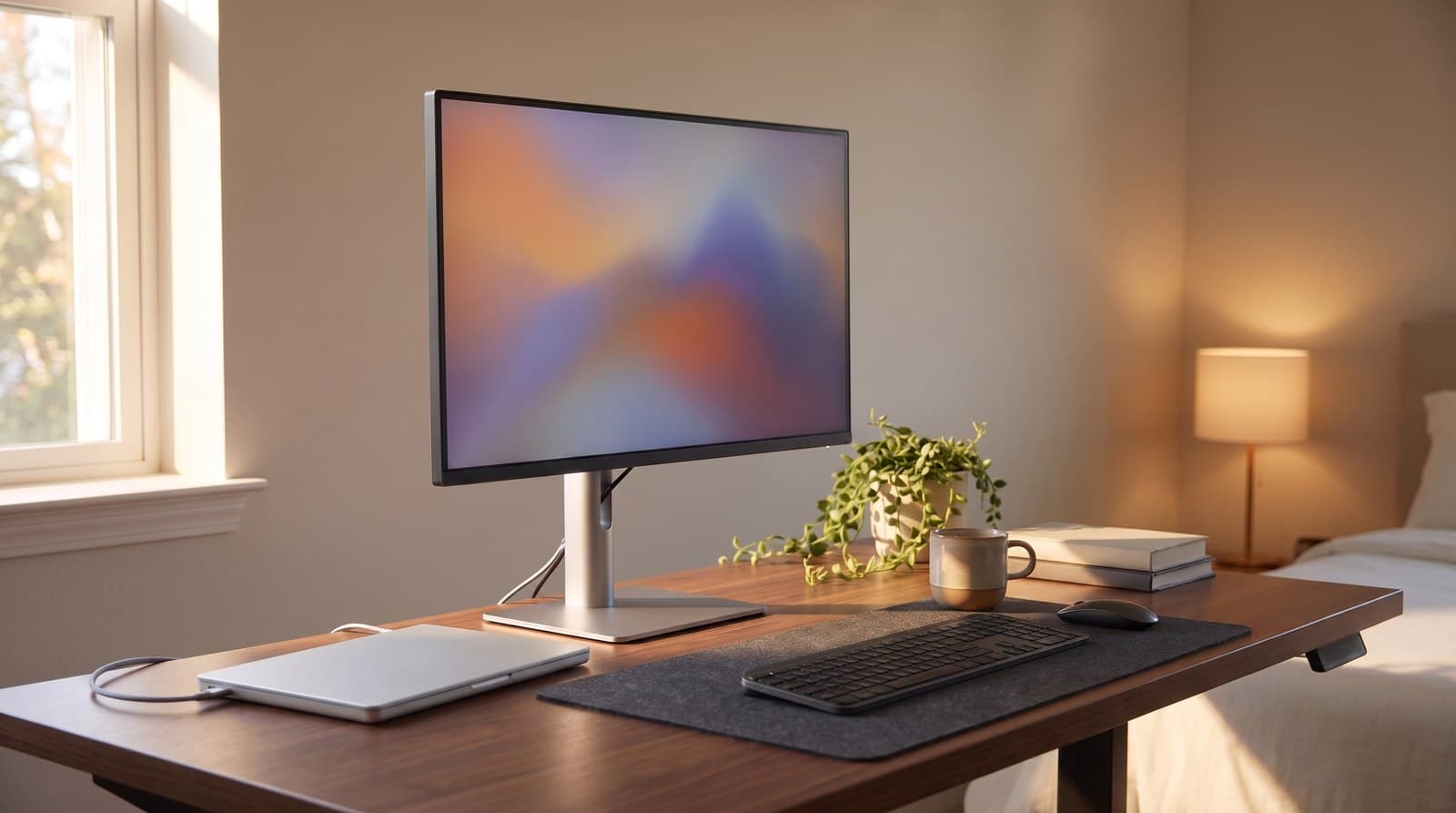
The monitor is the one piece of desk gear you look at continuously for eight hours a day, and it's the piece people most often buy on the wrong number. Resolution and refresh rate get printed on the box. Neither is what decides whether the thing is still pleasant in month six.
Three specs actually do. The first is pixel density — pixels per inch at the size you're buying, not the headline resolution. A 27-inch 1440p panel and a 27-inch 4K panel are 109 ppi and 163 ppi, and they behave completely differently once you account for display scaling, especially on a Mac. Nobody puts that number on a box, so we've put it in the comparison table.
The second is how much dock is built into the back. A monitor with 90–140 W of USB-C or Thunderbolt power delivery, an Ethernet jack and a KVM switch is quietly replacing a $200–300 dock, and that changes what "expensive" means. The third is the stand, which is where cheap monitors cut costs where you can't see it: a tilt-only hinge puts the top of the screen several inches below your eyeline, permanently, and no setting fixes posture.
We picked six across a $150-to-$800 ladder and 109 to 218 pixels per inch, every figure taken off a manufacturer spec sheet rather than a retail listing.
Our top picks at a glance
- 1
- 2
- 3
- 4
- 5
- 6
How we chose
- Pixel density calculated at the actual panel size, because 1440p at 27 inches and 4K at 27 inches are different products, not different numbers
- How much dock is built in — USB-C or Thunderbolt power delivery in watts, KVM switching, and whether there's an Ethernet jack
- Stand adjustability, taken from spec sheets: measured height range, pivot, swivel, and VESA pattern rather than the word 'ergonomic'
- Manufacturer-rated brightness stated plainly for every pick, because 250, 350 and 450 nits are a visible difference in a room with a window
- Native contrast, since IPS Black panels genuinely do about three times what a standard IPS does and the spec sheets say so
- Every figure cross-checked against the manufacturer's own spec sheet rather than retailer listing copy, which is wrong surprisingly often
Our picks come from spec research, long-term owner feedback, and category expertise — not sponsorships. Read the full methodology.
Compared side by side
| Product | Award | Size & resolution | Pixel density | USB-C dock | Typical price |
|---|---|---|---|---|---|
| Dell UltraSharp U2725QE | Best Overall | 27 in, 4K | 163 ppi | Thunderbolt 4, 140 W, KVM, 2.5 GbE | $620–700 |
| Dell S2725QC | Best Value | 27 in, 4K | 163 ppi | 65 W, no Ethernet or KVM | $280–350 |
| LG 27U631A-B | Best Budget | 27 in, 1440p | 109 ppi | 15 W — video only, no charging | $150–200 |
| BenQ GW2790QT | Best for Video Calls | 27 in, 1440p | 109 ppi | 65 W, USB hub, MST out | $280–330 |
| Samsung ViewFinity S8 32" (LS32D804UAN) | Best Big Screen | 31.5 in, 4K | 140 ppi | 90 W, Ethernet, KVM | $430–500 |
| ASUS ProArt Display 5K PA27JCV | Best for Text & Mac | 27 in, 5K | 218 ppi | 96 W, auto KVM, no Ethernet | $750–800 |
1. Best Overall
Dell UltraSharp U2725QE
Typically $620–700
- A laptop-based desk where one cable should do everything
- Two computers sharing one keyboard, mouse and screen
- Anyone about to buy a monitor and a Thunderbolt dock separately
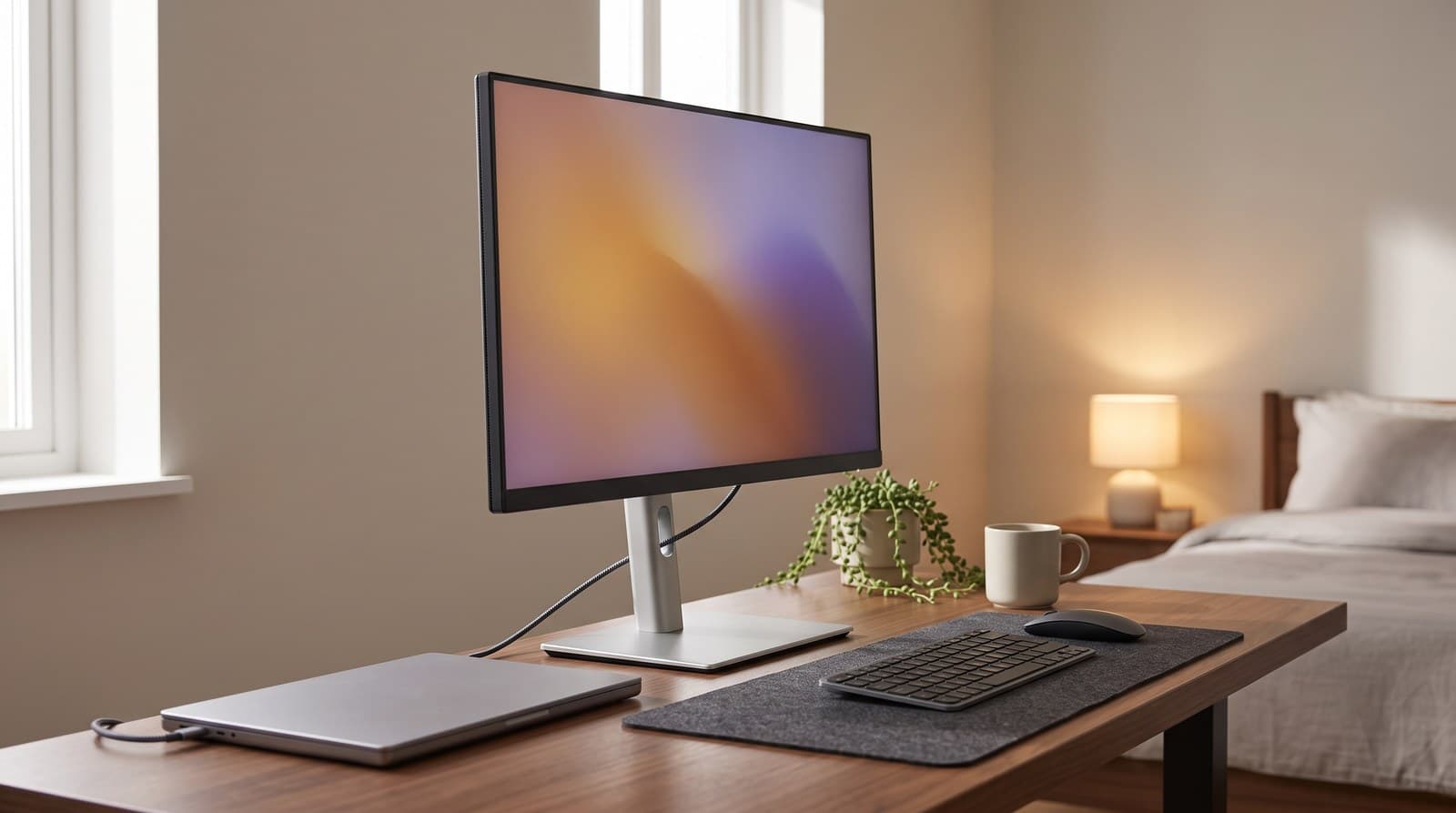
This is the monitor that makes a separate dock unnecessary, and once you price it that way the $699 sticker looks different. The panel is a 27-inch 3840 × 2160 IPS Black — Dell's higher-contrast IPS variant, rated at a native 3,000:1 rather than the 1,000:1 a standard IPS gives you — running at 120 Hz, 450 cd/m² typical with a 600 cd/m² peak, 99% DCI-P3 and a factory-rated average Delta E under 1.5. At 163 pixels per inch it's sharp enough that text stops looking like pixels and starts looking like print, and the higher contrast is the thing you notice within a day: blacks in a dark IDE theme are actually black rather than dark grey.
The back is where the money goes. The upstream Thunderbolt 4 port carries video, data and up to 140 W of EPR power delivery — enough to run and charge a 16-inch laptop at full tilt — alongside a second Thunderbolt 4 for daisy-chaining, a separate USB-C upstream with KVM so two machines can share your keyboard and mouse, five USB-A ports, two downstream USB-C, DisplayPort in and out, HDMI 2.1 and a 2.5 Gb Ethernet jack. The stand does everything: 5.91 inches of height travel, ±45° swivel, and a full ±90° pivot into portrait. Two honest caveats. The 8 ms response time means this is not a gaming panel despite the 120 Hz, and if your laptop is an older USB-C machine with no Thunderbolt you'll get video and 90-odd watts but not the full 140 W. Neither changes that it's the best all-round work monitor you can buy right now.
What we like
- IPS Black at 3,000:1 native contrast — three times a normal IPS panel
- Thunderbolt 4 with 140 W power delivery, 2.5 Gb Ethernet and a real KVM
- Three-year warranty with Advanced Exchange, and a stand with 5.91 in of travel
Worth knowing
- $620–700 is a lot if you'll never use the dock or the KVM
- 8 ms response — the 120 Hz doesn't make it a gaming monitor
- Full 140 W charging needs a Thunderbolt laptop, not just any USB-C port
- Size & resolution
- 27 in, 3840 × 2160 (163 ppi)
- Panel
- IPS Black, 120 Hz, 3,000:1
- Brightness
- 450 cd/m² typical, 600 peak
- Colour
- 99% DCI-P3, Delta E <1.5 avg
- Dock
- Thunderbolt 4 up to 140 W, KVM, 2.5 GbE
- Other ports
- HDMI 2.1, DP 1.4 in/out, 5 × USB-A, 2 × USB-C
- Stand
- 5.91 in height, ±45° swivel, ±90° pivot, VESA 100
2. Best Value
Dell S2725QC
Typically $280–350
- The most 4K per dollar with a stand that actually moves
- One-cable laptop docking without paying dock prices
- A work monitor that can also handle evening gaming
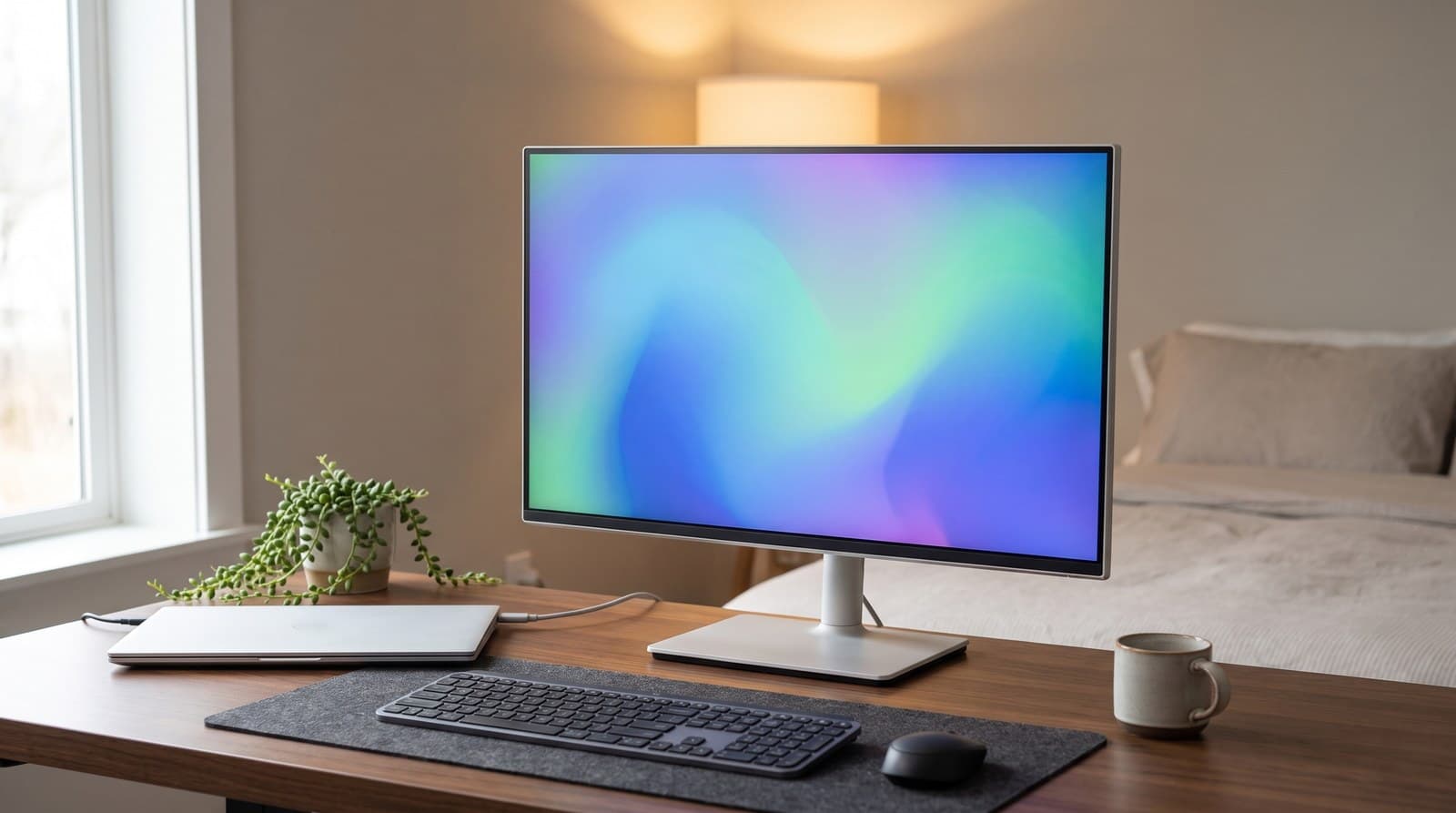
The S2725QC is the sweet spot of this entire guide, and it's the pick we'd hand to most people who don't need a Thunderbolt dock bolted to their screen. It's the same 27-inch 4K resolution and the same 163 ppi as the UltraSharp above at roughly half the price: an IPS panel at 120 Hz, 350 cd/m², 1,500:1 native contrast, 99% sRGB, with FreeSync Premium and a 48–120 Hz variable refresh range that makes it a genuinely competent gaming screen after hours. Two HDMI 2.1 ports carry 4K at 120 Hz, which is more than most work monitors at any price offer.
It docks, just modestly. The upstream USB-C does DisplayPort Alt Mode plus 65 W of power delivery, which is enough for almost every 13- and 14-inch laptop and enough to trickle a 16-inch one, and it feeds two USB-A ports and a 15 W downstream USB-C. There's no Ethernet and no KVM, so if you juggle two computers this isn't the one. The stand is the quiet reason to buy it though: 5.12 inches of height travel, ±30° swivel and a full ±90° pivot at a price where most monitors give you a tilt hinge and a shrug. What you're giving up against the UltraSharp is contrast (1,500:1 versus 3,000:1), brightness, colour coverage beyond sRGB, and the warranty — Dell only covers the S-series for a year.
What we like
- Full 4K and 163 ppi for around $300
- Height, swivel and ±90° pivot at a price point that usually skips them
- 120 Hz with FreeSync Premium and dual HDMI 2.1 — a real dual-purpose panel
Worth knowing
- 65 W USB-C won't fully feed a large laptop under load
- No Ethernet and no KVM
- One-year warranty, and 99% sRGB is the whole colour story
- Size & resolution
- 27 in, 3840 × 2160 (163 ppi)
- Panel
- IPS, 120 Hz, 1,500:1
- Brightness
- 350 cd/m²
- Dock
- USB-C 65 W, 2 × USB-A, 15 W USB-C out
- Other ports
- 2 × HDMI 2.1 (4K 120 Hz)
- Stand
- 5.12 in height, ±30° swivel, ±90° pivot, VESA 100
- Extras
- 2 × 5 W speakers, FreeSync Premium
3. Best Budget
LG 27U631A-B
Typically $150–200
- Getting off a laptop screen for the least money possible
- A second or third screen beside a monitor you already own
- Anyone who already owns a monitor arm
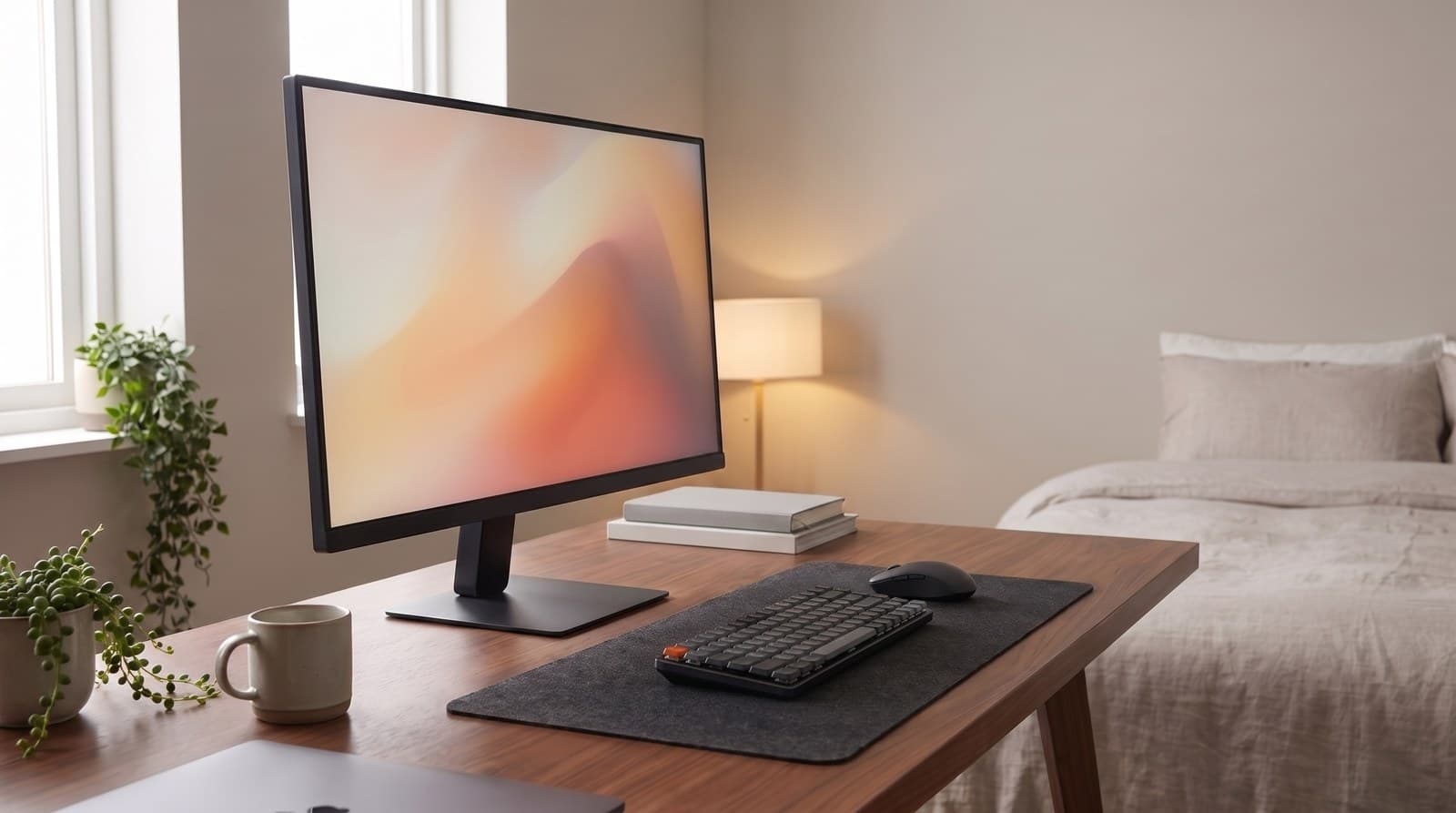
There is a floor to what a decent work monitor costs, and this is roughly it. The 27U631A-B is a 27-inch 2560 × 1440 IPS panel at 100 Hz with 99% sRGB coverage, HDR10 badging and a 5 ms response — 109 pixels per inch, which is the density Windows was designed around and which needs no display scaling at all. For a hundred and fifty-odd dollars that is a legitimately good screen, and it's the cheapest honest answer to "I've been working on a laptop display for three years."
Three things are cut, and you should know which. The panel is rated at 250 cd/m² and 1,000:1 — a hundred nits dimmer than everything else in this guide, which is perfectly comfortable in a normally lit room and not enough on a desk facing a bright window. The USB-C port is real but it only does 15 W of power delivery: it will carry video and data from a laptop that supports DisplayPort Alt Mode, and it will not charge that laptop, so you still need the laptop's own charger plugged in. And the stand only tilts — no height, no pivot, no swivel — which puts the top of the screen well below where your eyes want it unless you're unusually short or your desk is unusually low. There is a clean fix, and it's why we'd still recommend this panel: it has a standard 100 × 100 mm VESA pattern, and a $40 monitor arm buys you more adjustment than any bundled stand in this guide. Panel plus arm still lands under $200, and one confusing note while you shop — despite the "27U" in the model number, this is a 1440p monitor, not a 4K one.
What we like
- 27-inch 1440p IPS at 100 Hz for around $150–200
- 109 ppi — sharp at 100% scaling, no Windows scaling weirdness
- 100 × 100 VESA, so a cheap arm fixes the stand entirely
Worth knowing
- Tilt-only stand — no height adjustment at all
- 250 cd/m² — the dimmest panel here, and it shows facing a window
- USB-C carries video but only 15 W, so it won't charge your laptop
- Confusing name: "27U631A" is 1440p, not UHD
- Size & resolution
- 27 in, 2560 × 1440 (109 ppi)
- Panel
- IPS, 100 Hz, 1,000:1, 5 ms
- Brightness
- 250 cd/m²
- Colour
- 99% sRGB, HDR10
- Dock
- USB-C 15 W — video and data only
- Other ports
- HDMI 2.0, 3.5 mm headphone out
- Stand
- Tilt only, VESA 100 × 100
4. Best for Video Calls
BenQ GW2790QT
Typically $280–330
- Back-to-back calls without a headset on your head all day
- Long document and code sessions that leave your eyes tired
- A desk where the gear should look like furniture
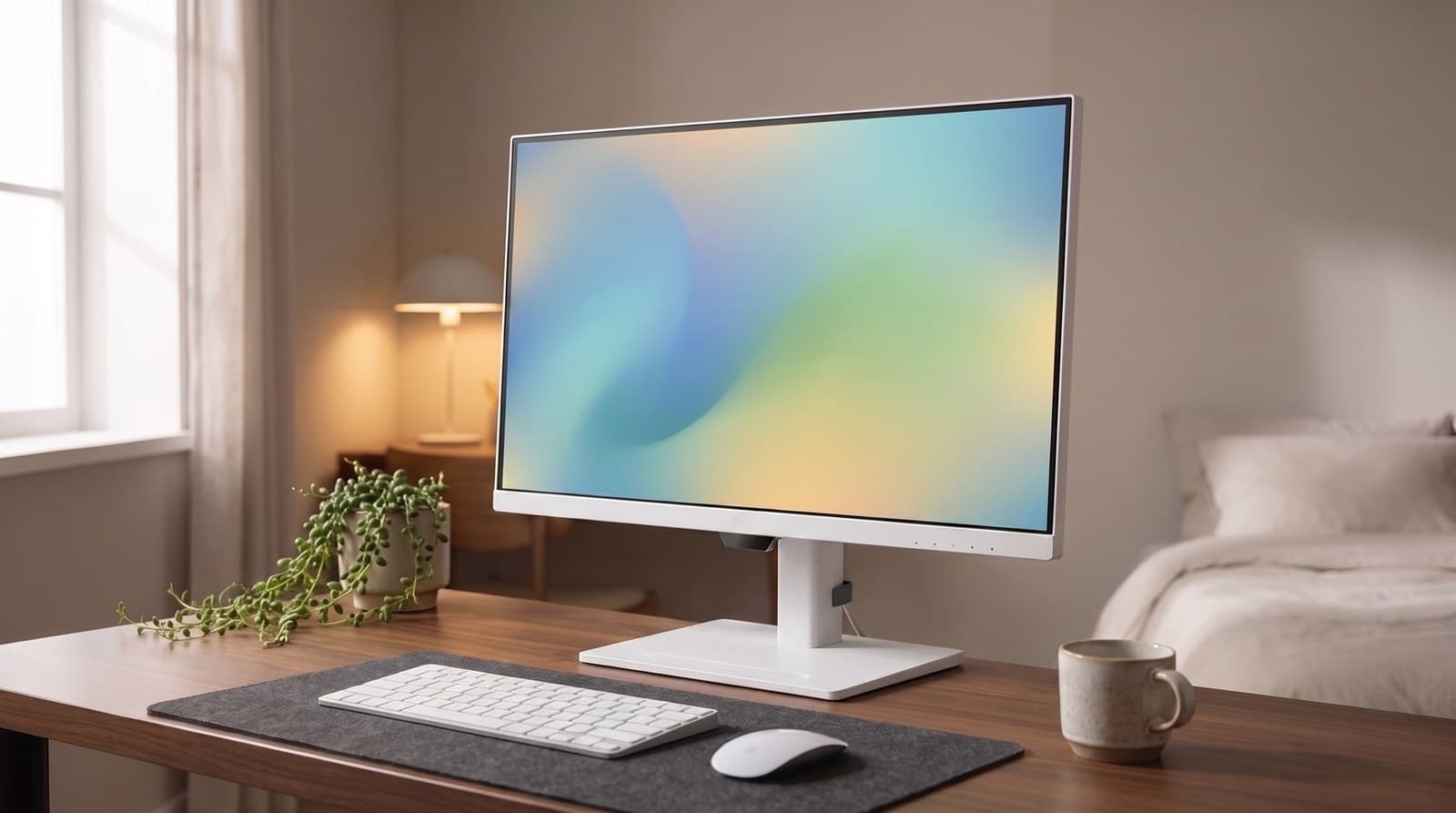
Most monitors treat audio as an afterthought — two tinny drivers so the spec sheet can say "speakers." BenQ built this one around calls instead. There's a noise-cancelling microphone in the bezel and a pair of 2 W noise-filter speakers, both of which run over the single USB-C cable, and the practical effect is that you can take a meeting without putting anything on your head. It isn't a replacement for a dedicated USB microphone if you record or stream, but for the eleventh call of the day it is a genuinely nice thing to have.
The rest is a solid 1440p office panel: 27-inch IPS at 2560 × 1440 and 109 ppi, 350 cd/m², 99% sRGB, 75 Hz with no Adaptive Sync — this one isn't pretending to game. The USB-C input handles DisplayPort Alt Mode and 65 W of charging, there's a downstream USB-C and a USB hub, and DisplayPort MST lets you daisy-chain a second screen off the back. The stand gives 110 mm of height plus tilt, swivel and pivot. BenQ's eye-comfort stack is the other differentiator and it's more substantial than the usual blue-light marketing: Brightness Intelligence Gen2 adjusts to ambient light automatically, there's a genuinely useful ePaper reading mode and a coding mode, and the panel carries both TÜV Rheinland and Eyesafe 2.0 certification. The white finish is the only one sold in the US, which is either the point or the problem depending on your desk.
What we like
- Noise-cancelling mic and noise-filter speakers built in, over one USB-C cable
- 65 W charging, USB hub and DisplayPort MST daisy-chaining
- 110 mm height adjustment, plus the most credible eye-comfort feature set here
Worth knowing
- 75 Hz and no Adaptive Sync — strictly a work panel
- 1440p at $300 when the Dell S2725QC is 4K for the same money
- Sold in white only in the US
- Size & resolution
- 27 in, 2560 × 1440 (109 ppi)
- Panel
- IPS, 75 Hz, 1,000:1, 5 ms
- Brightness
- 350 cd/m²
- Colour
- 99% sRGB
- Dock
- USB-C 65 W, USB hub, MST daisy-chain
- Audio
- Noise-cancelling mic, 2 × 2 W noise-filter speakers
- Stand
- 110 mm height, tilt, swivel, pivot
5. Best Big Screen
Samsung ViewFinity S8 32" (LS32D804UAN)
Typically $430–500
- Two full documents side by side without squinting
- Wired-network reliability for calls, over the same one cable
- Desks at least 30 inches deep
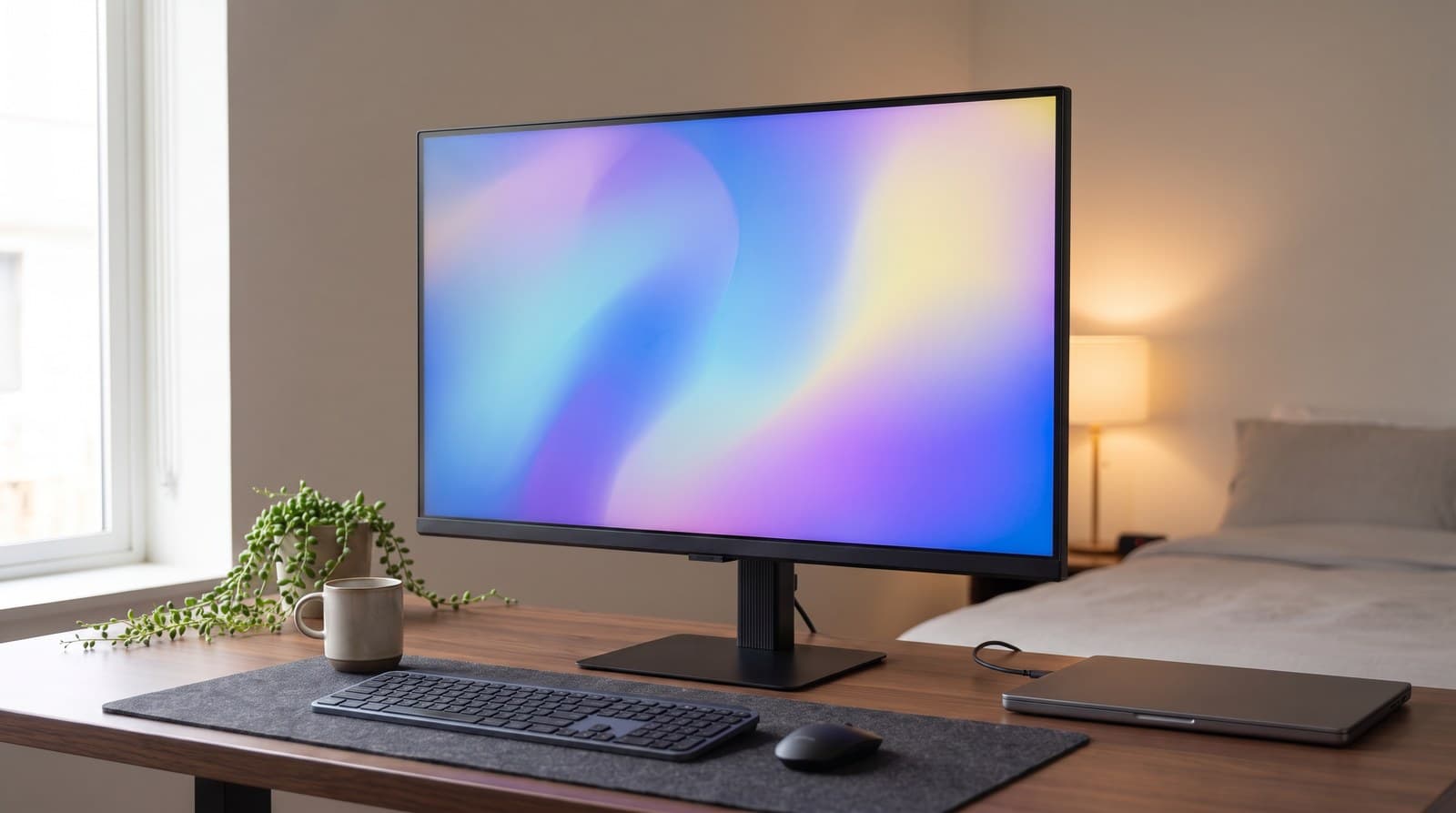
Going from 27 to 32 inches at the same 4K resolution doesn't buy you sharpness — it buys you size. Pixel density drops from 163 to about 140 ppi, which is still comfortably sharper than a 1440p 27-incher and means two full-width documents genuinely fit side by side at readable text size. This is the pick for anyone who has been running two 24-inch screens and would rather have one uninterrupted surface. The panel is IPS, 3840 × 2160 at 60 Hz, 350 cd/m², 1,000:1, 99% sRGB with HDR10 badging and a 5 ms response.
The connectivity is the reason it beats cheaper 32-inch panels: 90 W of USB-C power delivery, a built-in RJ45 Ethernet jack — rare below $500 and the single most reliable fix for a flaky video call — a KVM switch, HDMI 2.0, DisplayPort 1.2, and a USB hub, all on a height-adjustable ergonomic stand. Two warnings. First, measure your desk: a 32-inch panel wants roughly 30 inches of depth to sit at a comfortable distance, and on a 24-inch-deep desk it's overwhelming. Second, and more important, this model number is a maze. Samsung sells at least four near-identical 32-inch S80UD SKUs and they are not the same monitor — the LS32D802UAN in the same family is a VA panel with different contrast, and others drop the Ethernet or the speakers. Buy the exact SKU, not the family name.
What we like
- 32 inches of 4K at roughly 140 ppi for under $500
- 90 W USB-C plus a real Ethernet jack and a KVM switch
- Height-adjustable ergonomic stand, TÜV eye-comfort certified
Worth knowing
- 60 Hz, 1,000:1 contrast and 350 nits — the panel itself is unremarkable
- Needs about 30 inches of desk depth to be comfortable
- Four near-identical SKUs in the family, including a VA-panel one
- Size & resolution
- 31.5 in, 3840 × 2160 (140 ppi)
- Panel
- IPS, 60 Hz, 1,000:1, 5 ms
- Brightness
- 350 cd/m²
- Colour
- 99% sRGB, HDR10
- Dock
- USB-C 90 W, RJ45 Ethernet, KVM, USB hub
- Other ports
- HDMI 2.0, DisplayPort 1.2
- Stand
- Height, tilt, swivel, pivot
6. Best for Text & Mac
ASUS ProArt Display 5K PA27JCV
Typically $750–800
- MacBook users who want text as sharp as the laptop screen
- Writing, code and spreadsheets for eight hours a day
- Colour work that needs a calibrated, wide-gamut panel
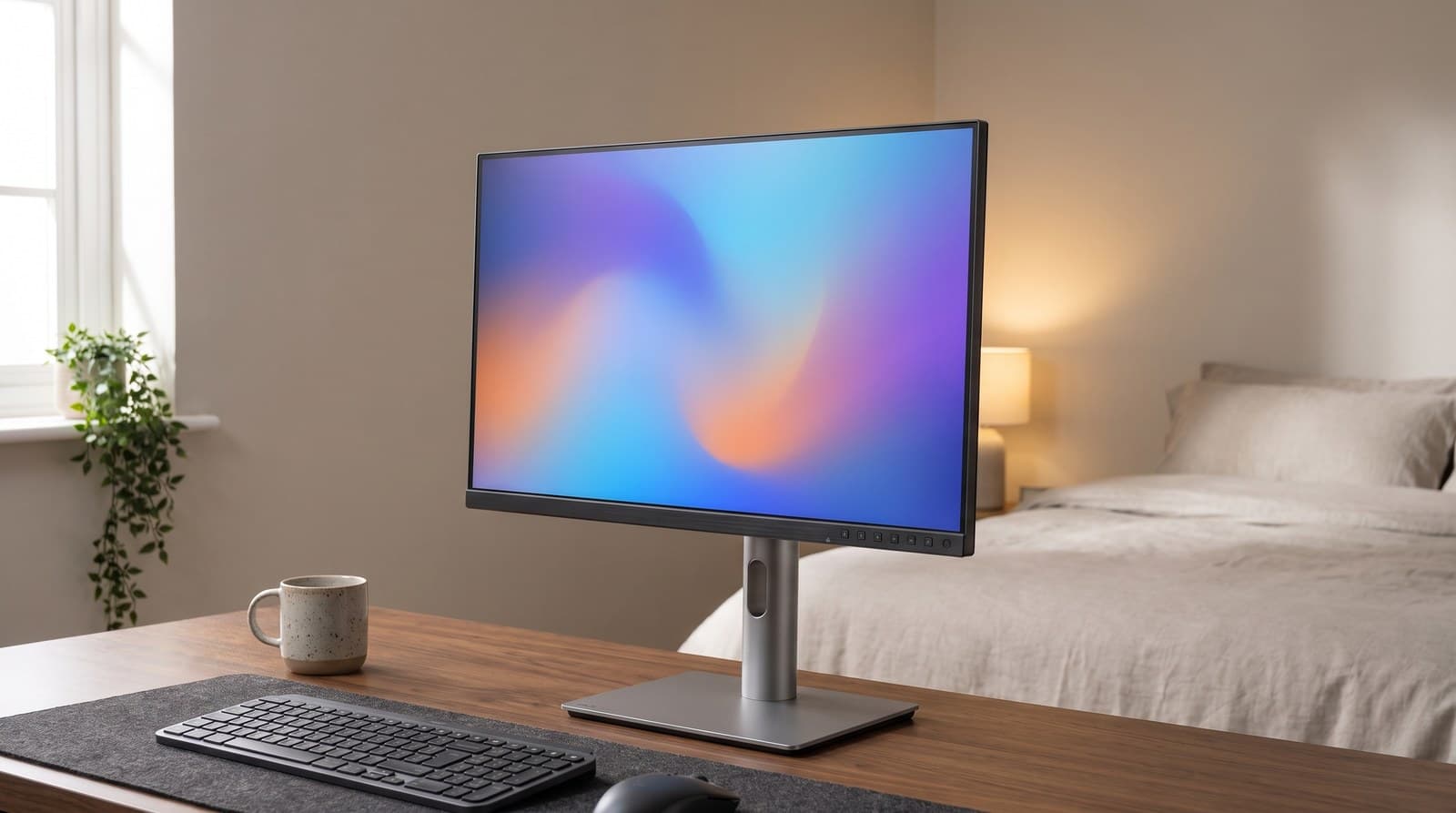
This is the answer to a specific and very common complaint: 4K looks worse on a Mac than it should. macOS renders crisply at exact 2× scaling, and a 27-inch 5120 × 2880 panel is precisely 2× a 2560 × 1440 workspace — which is why Apple's own displays are 5K and why a 4K panel on a Mac ends up either fractionally scaled or showing you a workspace that's too small. At 218 pixels per inch the PA27JCV is the first 5K monitor priced within reach of a normal desk, and next to an $1,100 alternative that's the whole story.
It's a serious panel in its own right. IPS at 60 Hz, 400 cd/m² typical with a 500 cd/m² HDR peak, 3,000:1 contrast, 10-bit colour covering 100% sRGB, 99% DCI-P3 and 95% Adobe RGB, factory calibrated to a Delta E under 2 and Calman verified, under an anti-glare low-reflection coating that handles a window better than the glossy finish this class of display usually wears. Connectivity is 96 W USB-C with DisplayPort Alt Mode, HDMI 2.1, DisplayPort 1.4, three USB-A ports and an auto KVM, on a stand with 130 mm of height travel and a full pivot. The trade-offs are honest ones: 60 Hz only, no Thunderbolt and no Ethernet, so it's a display with a good hub rather than a dock replacement like the Dell. And at 218 ppi you will run it scaled, which means the extra pixels buy you sharpness rather than extra desktop space. If your work is words, that's exactly the trade you want.
What we like
- 5120 × 2880 at 218 ppi — the sharpest text of anything here, and native 2× for macOS
- 3,000:1 contrast, 99% DCI-P3, factory Delta E <2 with a matte low-reflection finish
- 96 W USB-C, auto KVM, 130 mm of height adjustment
Worth knowing
- $750–800, roughly double the value picks
- 60 Hz, no Thunderbolt and no Ethernet
- You'll run it scaled — the pixels buy sharpness, not desktop space
- Size & resolution
- 27 in, 5120 × 2880 (218 ppi)
- Panel
- IPS, 60 Hz, 3,000:1, 10-bit
- Brightness
- 400 cd/m² typical, 500 HDR peak
- Colour
- 100% sRGB, 99% DCI-P3, 95% Adobe RGB, Delta E <2
- Dock
- USB-C 96 W, 3 × USB-A, auto KVM
- Other ports
- HDMI 2.1, DisplayPort 1.4
- Stand
- 130 mm height, ±30° swivel, ±90° pivot, VESA 100
The verdict
For most home-office desks the Dell UltraSharp U2725QE is the buy, and it's most defensible if you price it as a monitor plus the Thunderbolt dock you were going to buy anyway. IPS Black contrast, 163 ppi, 140 W of charging, 2.5 Gb Ethernet, a KVM and a three-year warranty is a lot of monitor, and the only real reason to skip it is if you'll never plug a laptop into it.
If that's the case, the Dell S2725QC is the smarter spend by a wide margin: the same 27-inch 4K sharpness, a stand that does height, swivel and a full pivot, 65 W of USB-C charging and 120 Hz with FreeSync for the evening, at roughly half the price. It's the pick we'd give most people who asked without qualifying the question.
From there, buy for the specific thing you need. The LG 27U631A-B is the honest floor of the category at $150–200 — accept the 250-nit panel and the tilt-only stand, and put it on an arm, which costs less than the difference to the next screen up. The BenQ GW2790QT earns its place on a noise-cancelling mic and filtered speakers that let you take the eleventh call of the day without a headset. The Samsung ViewFinity S8 32-inch is the one to get if you want surface rather than sharpness, with an Ethernet jack most sub-$500 monitors skip — just buy the exact SKU, because that family has four near-identical model numbers and one of them is a VA panel. And the ASUS ProArt Display 5K PA27JCV is the only pick here that solves the Mac scaling problem properly, at a price 5K has never been before.
Two things to sort out before you order. Measure your desk depth, and measure the monitor's stand while you're at it — the stand is what actually eats the depth, and published figures on these picks range from 7.4 inches on the UltraSharp to 8.7 on the 32-inch Samsung. A 27-inch on a shallow stand is comfortable on a 27-inch-deep desk; a 32-inch wants closer to 30, and either goes on a much shallower desk once the stand comes off — our guide to sizing a monitor to your desk has the published depth figures and the arithmetic behind them. And decide whether the screen is also your dock — if it is, you may not need a separate one, and if the screen never has to travel, note that a fixed desktop monitor is more display for less money than any portable panel.
Frequently asked questions
On Windows, either works and the honest answer is budget. 2560 × 1440 at 27 inches is 109 pixels per inch, which is what Windows was designed around — everything is the right size at 100% scaling with no fiddling, and you get more usable desktop space than a scaled 4K screen. 3840 × 2160 at the same size is 163 ppi, which you'll typically run at 125% or 150% scaling: text is visibly crisper, but you end up with roughly the same amount of room for windows. So 4K buys sharpness, not space. Given that a 4K panel like the Dell S2725QC now costs about the same as a good 1440p one, we'd take the 4K — but if the money is better spent on a monitor arm or a decent chair, a 1440p screen is not a compromise you'll regret. On a Mac the calculus is different; see the next question.
Because macOS is built around exact 2× scaling and 4K isn't exactly 2× anything useful. A 27-inch 5K panel at 5120 × 2880 renders a 2560 × 1440 workspace at a clean 2:1, which is why every Apple display is 5K. On a 27-inch 4K screen your options are a 1920 × 1080 workspace (too big, too little room) or a fractionally scaled mode that macOS renders at a higher resolution and downsamples — it works and most people are fine with it, but text is slightly softer than it is on the MacBook's own panel, and that's the thing Mac users notice and complain about. If you're on a Mac and you read and write all day, the ASUS ProArt PA27JCV is the pick, and it's several hundred dollars below what 5K used to cost. If you mostly use Windows, none of this applies.
Work out what the monitor's dock is actually worth before you compare prices. A screen with 90–140 W power delivery, an Ethernet jack and a KVM is doing the job of a $200–300 Thunderbolt dock, which is most of the gap between the Dell U2725QE and the Dell S2725QC. Buy the monitor-as-dock if you work off a laptop that comes and goes from the desk, because one cable connecting screen, power, network and peripherals is genuinely better than four. Buy the cheaper monitor plus a separate dock if you run a desktop tower, if you need more ports than any monitor offers, or if you expect to replace the screen and the dock on different schedules. Our USB-C hubs and docks guide covers the standalone route, including the difference between a $40 hub and a real dock.
It's a panel variant that roughly triples native contrast — 3,000:1 instead of the 1,000:1 a standard IPS delivers — by cutting how much backlight leaks through black pixels. That's a real, measurable difference and not a marketing tier: dark interfaces, dark-mode editors and letterboxed video all look markedly better, and it's the single clearest advantage the Dell U2725QE and the ASUS ProArt have over the cheaper picks here. It is not OLED. Blacks are deep grey rather than genuinely off, and in a bright room you may not notice at all. If you work in a dim room or spend your day in a dark IDE theme, it's worth the money. If your desk faces a window, spend it on brightness instead.
It's pleasant and it is not important. Scrolling and cursor movement look smoother, and once you've used it 60 Hz feels slightly sticky — but no work task requires it and nobody has ever been less productive because of a 60 Hz panel. Notice that two of the best screens here, the ASUS ProArt 5K and the Samsung 32-inch, are 60 Hz, and neither is worse for it. Where it does matter is if the monitor pulls a second shift as a gaming display in the evening: then the Dell S2725QC is the standout, because it pairs 120 Hz with FreeSync Premium and a 48–120 Hz variable refresh range at a price where that combination is unusual. Buy refresh rate for games, not for spreadsheets.
Two, more often than people expect — and we'd rather say that than sell you the expensive single screen. Two 27-inch 1440p panels land in the same $300–400 bracket as one good 4K screen and well under a docking monitor like the U2725QE, they give you far more total surface than either, and they hard-separate your contexts in a way window management on one screen never quite does: reference on the left, work on the right, no snapping, no overlapping. A single large screen wins when you need one continuous surface — long timelines, wide spreadsheets, big code files — or when you simply don't want a bezel in your eyeline. If you go dual, budget for the mount as part of the purchase: two screens on their factory stands eat a desk, and a dual monitor arm reclaims the whole back third of it.
Check the height range on the spec sheet first, because it varies more than anything else on a monitor. The Dell UltraSharp gives 5.91 inches of travel and the ASUS 130 mm; the LG budget pick gives you a tilt hinge and nothing else. If the stand adjusts properly and the screen sits with the top edge at about eye level, keep it — it's free, it's rigid, and it's already in the box. Buy an arm when the stand is tilt-only, when you want the desk space back underneath, when you need the screen to swing away or into portrait regularly, or when you're running more than one display. Check the VESA pattern (almost everything here is 100 × 100 mm) and the monitor's weight against the arm's rating before you order — that's the mistake people make.
Keep building your setup
Monitors
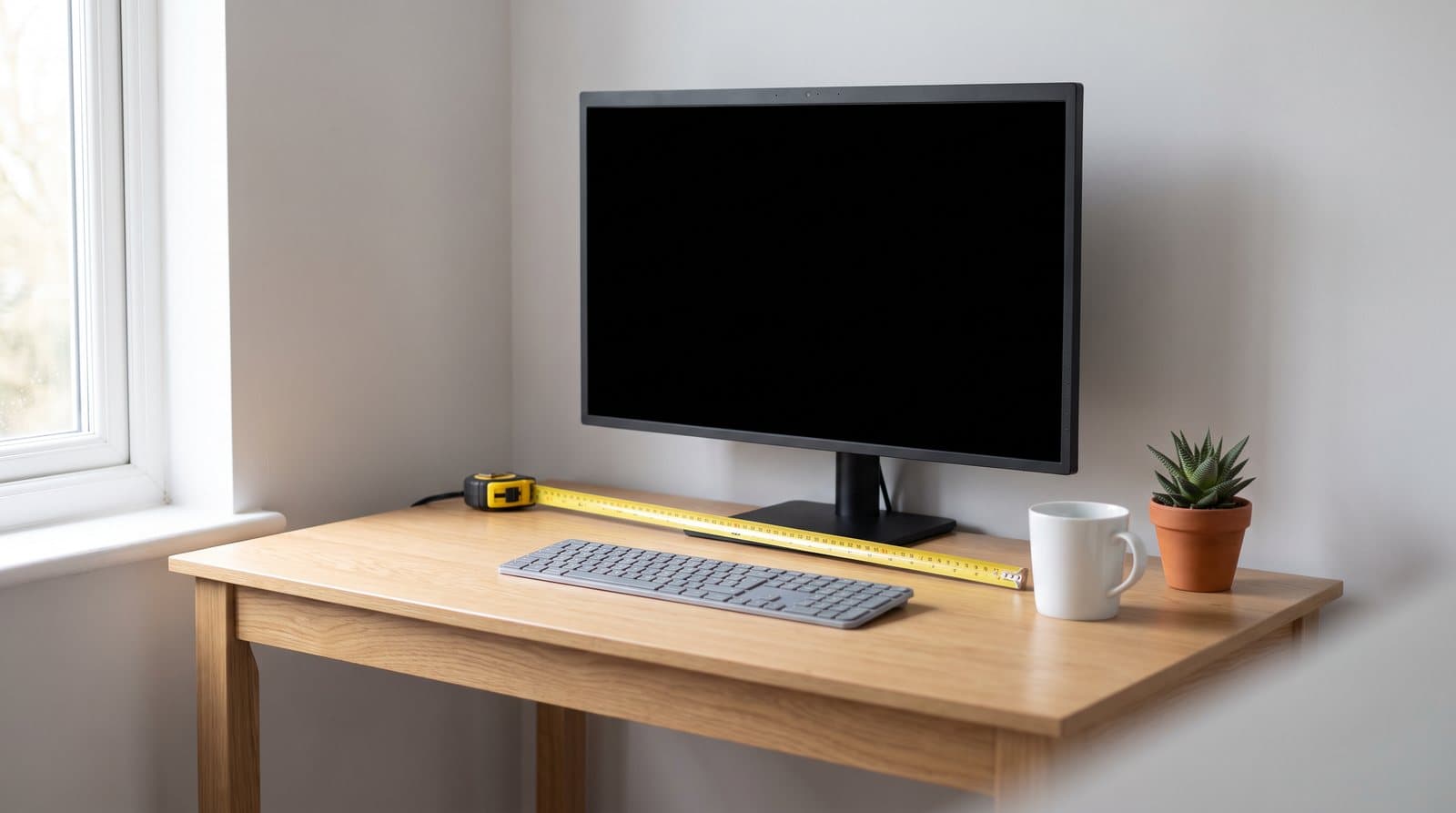
What Size Monitor for Your Desk: Width, Not Inches
A 34-inch ultrawide is no taller than a 27-inch monitor, a 32-inch has more screen area than either, and the deepest stand in this guide belongs to the smallest display. Diagonal inches are the one dimension that predicts none of that. Here is how to size a screen from the desk you already own.
Updated September 2, 2026
Monitors
The Best Gaming Monitors in 2026
A monitor advertising 1,000 nits and 360 Hz delivers 250 nits across a full white screen and 360 frames only if your GPU can render them. Six picks from $160 to $1,000, judged on sustained brightness, burn-in warranty cover, and what your graphics card can realistically drive.
Updated August 14, 2026
Monitors
The Best Ultrawide Monitors in 2026
An ultrawide buys you width, not sharpness — a 34-inch 3440x1440 panel is exactly as crisp as a 27-inch 1440p screen. Six picks from $250 to $2,250, judged on pixel density, the weight number your monitor arm cares about, and what the ports actually do.
Updated August 11, 2026
Get the next guide in your inbox
One short email when we publish or meaningfully update a buying guide. No spam, no daily deals firehose.