 Rigworthy
The Best Gaming Monitors in 2026
By Rigworthy Editorial Team · Updated August 14, 2026
Rigworthy is reader-supported: we may earn a commission if you buy through our links, at no cost to you. How we make money
Gaming monitors are sold on three numbers that all describe a best case: a refresh rate your graphics card can rarely feed, a brightness figure measured on 3% of the screen, and a response time nobody can tell apart past a certain point. None of them are lies. All of them are the most flattering version of the truth.
Start with refresh rate, because it's where most of the money goes. The monitor sets a ceiling; the frames are produced by the GPU. A 360 Hz panel fed 70 frames per second is a 70 fps experience, and at 4K, no consumer graphics card comes close to 240 fps in a demanding modern title. Buy the refresh rate your card can actually reach at the resolution you'll run — which for most people means 1440p at 165–240 Hz, not 4K at 240.
Then brightness. The OLEDs here advertise 1,000 nits, and they'll do it across a small highlight. Across a full white screen they manage 250 — dimmer than the $180 IPS panel further down this page. That number decides how the monitor feels in a real room with a window in it, so we've put it in the comparison table instead of the peak figure.
And burn-in, which is the one risk in this category that can cost you the whole purchase. Rather than argue about how likely it is, we've made the warranty a column: whether the manufacturer covers OLED image retention, in writing, and for how many years.
Six picks from $160 to $1,000, across 24 to 32 inches, IPS and QD-OLED, every spec figure taken from a manufacturer sheet rather than a retail listing, and every price from what these actually sell for rather than what they list at.
Our top picks at a glance
- 1
- 2
- 3
- 4
- 5
- 6
How we chose
- Full-screen brightness — the manufacturer's 100%-window figure rather than the small-highlight peak, because it is what you actually see in a lit room
- Burn-in warranty terms read line by line: whether OLED image retention is explicitly covered, and for how many years
- The refresh rate at native resolution over each specific port, since several panels hit their headline number only over DisplayPort
- What a realistic graphics card can feed at that resolution, so the refresh rate on the box is one you'd ever reach
- Panel technology stated plainly — QD-OLED, WOLED or IPS — along with the coating, since a glossy screen in a bright room is a different product
- Stand adjustability and VESA pattern read off spec sheets, because a gaming monitor is still a monitor you sit in front of all day
Our picks come from spec research, long-term owner feedback, and category expertise — not sponsorships. Read the full methodology.
Compared side by side
| Product | Award | Panel & refresh | Full-screen brightness | Burn-in cover | Typical price |
|---|---|---|---|---|---|
| Alienware AW2725DF | Best Overall | 27 in 1440p QD-OLED, 360 Hz | 250 nits | 3 yr, included | $500–650 |
| LG UltraGear 27GS75Q-B | Best Value | 27 in 1440p IPS, 180 Hz | 300 nits | n/a — LCD | $160–200 |
| LG UltraGear 24GS65F-B | Best for Competitive FPS | 24 in 1080p IPS, 180 Hz | 300 nits | n/a — LCD | $180–200 |
| Alienware AW2725Q | Best 4K | 27 in 4K QD-OLED, 240 Hz | 250 nits | 3 yr, included | $675–830 |
| ASUS ROG Strix XG27UCS | Best for Consoles | 27 in 4K IPS, 160 Hz | 400 nits | n/a — LCD | $330–400 |
| Samsung Odyssey OLED G8 (G81SF) 32-inch | Best Big Screen | 32 in 4K QD-OLED, 240 Hz | 250 nits | 3 yr, included | $770–1,000 |
1. Best Overall
Alienware AW2725DF
Typically $500–650
- One monitor that has to be good at competitive shooters and everything else
- PC players on DisplayPort who want OLED contrast without 4K's GPU cost
- Anyone who wants burn-in explicitly covered rather than hand-waved
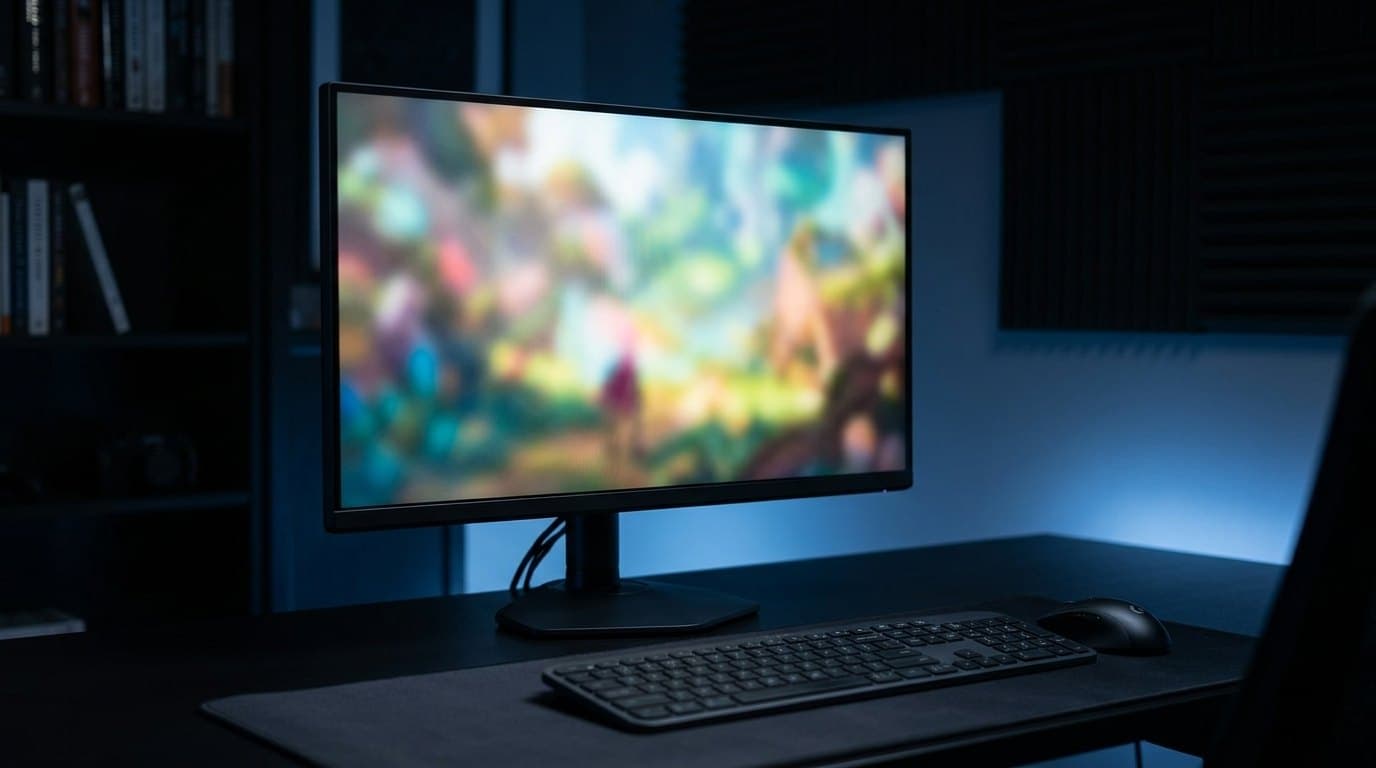
This is the 1440p OLED that made the rest of the category adjust its pricing, and it is still the sanest single answer to "what gaming monitor should I buy." It is a 26.7-inch third-generation QD-OLED panel at 2560 × 1440, running to 360 Hz with a 0.03 ms grey-to-grey response, 99.3% DCI-P3 coverage and true 10-bit colour. The contrast is the part you notice first and never stop noticing: OLED switches individual pixels off, so a night scene has actual black in it rather than the grey haze an IPS panel produces. The third-generation panel also reworked the subpixel layout, which is why text on this screen is materially cleaner than on the QD-OLED monitors from two years ago — there is still a trace of colour fringing on small fonts at close range, and most people stop seeing it within a week.
1440p is the reason this is the overall pick rather than the 4K model below. A mid-range card from the last two generations can genuinely push 150–250 frames per second at 1440p in most competitive titles, which means the 360 Hz is a number you'll actually reach some of the time. At 4K the same card would be nowhere near it. Two things to know before you order. The 360 Hz runs over DisplayPort — the single HDMI port tops out at 144 Hz, so this is a PC monitor first and a console monitor second. And the brightness reads as 1,000 nits on the box, which is a 3%-window peak; across a full white screen it is 250 nits, less than the $180 LG further down this list. Dell backs it with three years of Advanced Exchange that covers OLED burn-in in writing, which is the single most important line in this whole guide.
What we like
- Per-pixel black levels and 99.3% DCI-P3 at a price that used to buy a mid-range IPS
- 360 Hz at 1440p is a refresh rate a real graphics card can occasionally feed
- Three-year Advanced Exchange warranty with OLED burn-in covered explicitly
Worth knowing
- HDMI caps at 144 Hz — the 360 Hz needs DisplayPort
- 250 nits across a full screen, so a sunlit desk will wash it out
- Slight text fringing at close range, as with every QD-OLED
- Size & resolution
- 26.7 in, 2560 × 1440 (110 ppi)
- Panel
- QD-OLED, 360 Hz (DP), 0.03 ms GtG
- Brightness
- 250 nits full screen, 1,000 nits 3% peak
- Colour
- 99.3% DCI-P3, 10-bit
- HDR
- DisplayHDR True Black 400
- Ports
- 2 × DP 1.4, 1 × HDMI (144 Hz), USB-C 15 W, 3 × USB-A
- Stand
- 110 mm height, ±20° swivel, ±90° pivot, VESA 100
- Warranty
- 3 yr Advanced Exchange, burn-in included
2. Best Value
LG UltraGear 27GS75Q-B
Typically $160–200
- Getting 90% of the gaming experience for a fifth of the flagship price
- Bright rooms, where OLED's full-screen brightness is no advantage at all
- Desks where the monitor is also a work screen with static UI all day
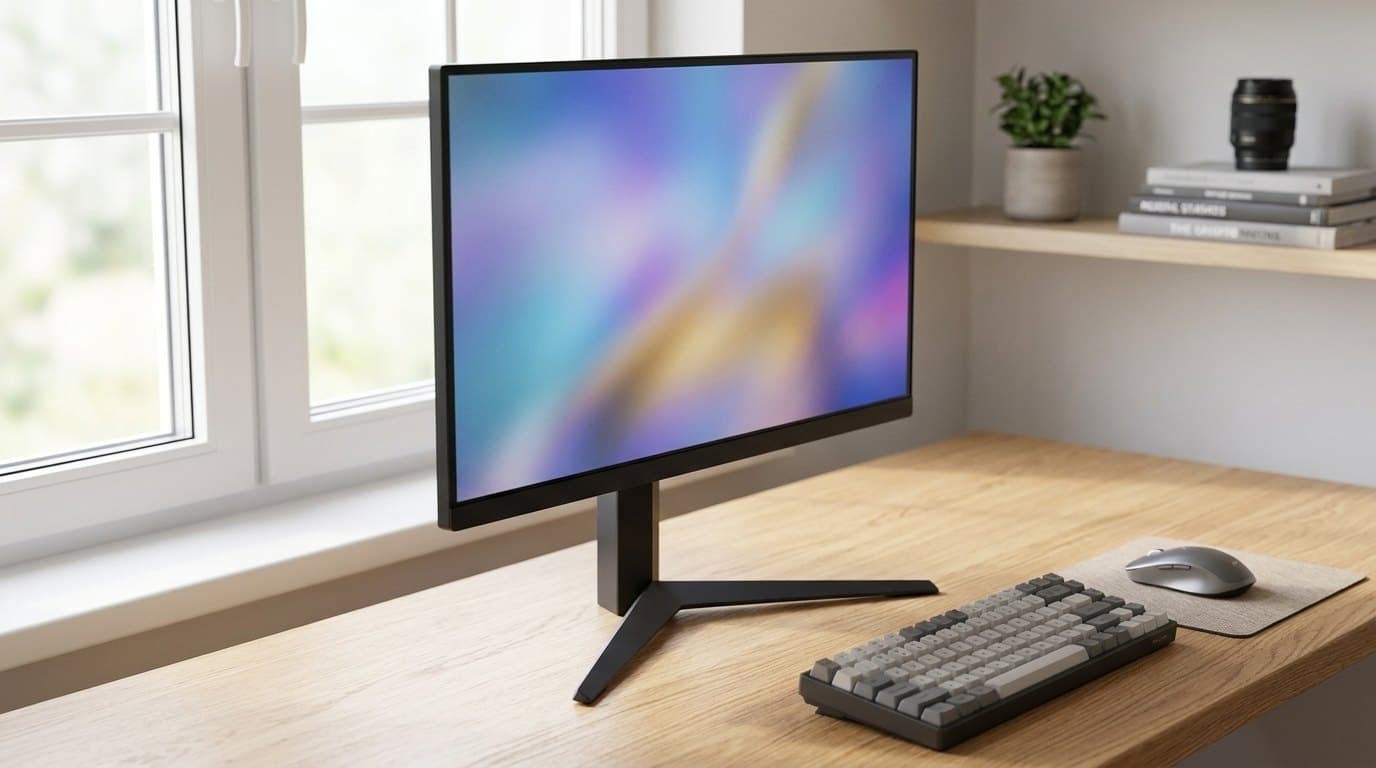
If you only read one entry on this list, read this one, because it is the pick that quietly makes most of the others hard to justify. It is a 27-inch 2560 × 1440 Fast IPS panel at 180 Hz natively, overclockable to 200 Hz over DisplayPort, with a 1 ms grey-to-grey response, 99% sRGB coverage, HDR10 input and both NVIDIA G-SYNC Compatible and AMD FreeSync certification. The stand tilts, raises and pivots, which is genuinely unusual at this price — the standard cost-cutting move on a $180 monitor is a tilt-only stand that leaves the screen four inches too low forever. It has two HDMI inputs plus DisplayPort 1.4, and the 200 Hz overclock is a DisplayPort-only trick, so use DP on a PC.
What you give up against the OLED picks is contrast and colour volume. This is a 1,000:1 IPS panel at 300 nits, so blacks are dark grey and HDR content is HDR in name only. What you get back is everything else: no burn-in risk of any kind, no pixel-refresh cycles, no anxiety about leaving a game HUD or a spreadsheet on screen for eight hours, and roughly $400 that can go into a graphics card instead. That trade matters more than it sounds, because frame rate is produced by the GPU, not by the monitor — a 180 Hz panel fed 160 fps looks dramatically better than a 360 Hz panel fed 70. For a great many players this is simply the correct monitor, and the honest version of this guide says so out loud.
What we like
- Around $180 for 1440p at 180 Hz with a height-adjustable, pivoting stand
- IPS means zero burn-in risk — safe as a work screen with static UI
- G-SYNC Compatible and FreeSync certified, so adaptive sync just works
Worth knowing
- 1,000:1 contrast and 300 nits — HDR10 support is a label, not a feature
- The 200 Hz overclock only works over DisplayPort
- Colour gamut is sRGB-class, so it's not a content-creation screen
- Size & resolution
- 27 in, 2560 × 1440 (109 ppi)
- Panel
- Fast IPS, 180 Hz (200 Hz OC), 1 ms GtG
- Brightness
- 300 nits
- Contrast
- 1,000:1
- Colour
- 99% sRGB, HDR10 input
- Adaptive sync
- G-SYNC Compatible, AMD FreeSync
- Ports
- 2 × HDMI, 1 × DP 1.4, headphone out
- Stand
- Tilt, height and pivot, VESA 100
3. Best for Competitive FPS
LG UltraGear 24GS65F-B
Typically $180–200
- Competitive shooters, where a smaller screen keeps the action in one glance
- Small desks and desks shared with a laptop
- A first gaming monitor, or a second screen that still runs at 180 Hz
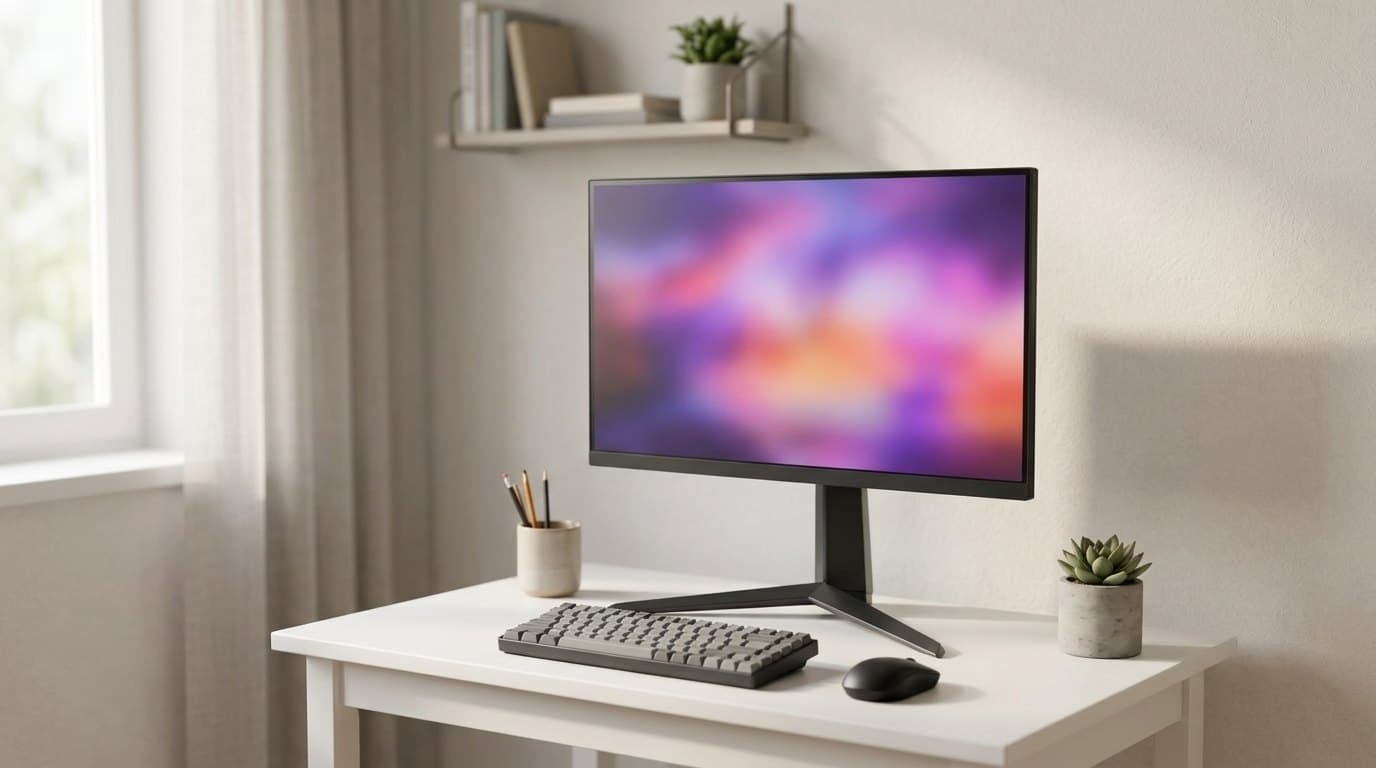
The 24-inch 1080p monitor is not a compromise in competitive gaming; it is what a large share of people who play for money actually use. This one is a 24-inch 1920 × 1080 IPS panel at 180 Hz with a 1 ms grey-to-grey response, 300 nits, 99% sRGB, HDR10 input, G-SYNC Compatible and FreeSync certification, and — again unusually at the price — a stand that tilts, raises and pivots. The gaming extras are the ones that get used: Black Stabilizer for lifting shadow detail in dark corners, a crosshair overlay, an on-screen FPS counter.
The case for 24 inches over 27 is not money. These two LGs sell for roughly the same, so this is a shape decision, not a budget one, and if you want the cheapest good screen on this page the 27-inch 1440p model above is it. What you buy here is the form factor: at normal desk distance a 24-inch screen sits inside your central vision, so an enemy at the edge of the frame registers without a head turn — which is precisely why it persists on esports stages. 1080p at 24 inches is about 92 pixels per inch, coarser than any other pick here, and you'll see that on text and on distant detail in slower games. The corresponding advantage is the one that matters most on a modest PC: 1080p at 180 Hz is by far the easiest target on this list for a graphics card to hit, so this is the pick most likely to actually run at its rated refresh rate rather than near it.
What we like
- 180 Hz, 1 ms IPS with a full height-and-pivot stand, rare at this price
- 1080p is the easiest refresh target on this list for a mid-range GPU
- 24 inches keeps the whole frame inside your central vision
Worth knowing
- About 92 ppi — noticeably the coarsest screen here for text
- Costs about the same as the sharper 27-inch 1440p pick above
- 24 inches feels small if the same screen is also your work monitor
- Size & resolution
- 24 in, 1920 × 1080 (≈92 ppi)
- Panel
- IPS, 180 Hz, 1 ms GtG
- Brightness
- 300 nits
- Colour
- Up to 99% sRGB, HDR10 input
- Adaptive sync
- G-SYNC Compatible, AMD FreeSync
- Gaming extras
- Black Stabilizer, crosshair, FPS counter
- Stand
- Tilt, height and pivot, VESA mount
4. Best 4K
Alienware AW2725Q
Typically $675–830
- One screen that plays games at night and renders sharp text by day
- PS5 and Xbox owners who also game on a strong PC
- Anyone who wants OLED contrast without OLED's usual text penalty
This is the sharpest screen in the guide and the one that best survives being a work monitor as well. It is a 26.7-inch QD-OLED at 3840 × 2160, which works out at 165 pixels per inch — dense enough that the subpixel fringing that dogs OLED text simply stops being visible. Refresh is 240 Hz with a 0.03 ms response, colour is 99% DCI-P3 at true 10-bit, and it carries both DisplayHDR True Black 400 and Dolby Vision. The finish is semi-glossy rather than matte: more vivid and more contrasty than a matte OLED, and more reflective, so it wants a room where no lamp or window sits behind you.
The port layout is the quietly clever part. Alongside DisplayPort 1.4 with DSC there are two HDMI 2.1 inputs that both carry 4K at 240 Hz with VRR, so a PS5 and an Xbox can stay plugged in permanently alongside the PC — a genuinely rare arrangement, and the reason this doubles as the best console-capable OLED here. Two honest limits. The USB-C port is a 15 W data port with no DisplayPort Alt Mode, so this is not a one-cable laptop dock the way a work monitor is. And 4K at 240 Hz is a refresh rate essentially no graphics card reaches in a demanding modern title — you are buying the resolution, with the refresh as headroom for older and lighter games. Dell's three-year Advanced Exchange covers burn-in, same as the 1440p model.
What we like
- 165 ppi kills OLED text fringing — the OLED you can also work on
- Two HDMI 2.1 ports that both do 4K 240 Hz for consoles
- Three-year Advanced Exchange with OLED burn-in covered
Worth knowing
- Semi-glossy coating punishes a bright room or a window behind you
- USB-C is data-only at 15 W — no single-cable laptop docking
- No graphics card gets near 240 fps at 4K in a demanding game
- Size & resolution
- 26.7 in, 3840 × 2160 (165 ppi)
- Panel
- QD-OLED, 240 Hz, 0.03 ms GtG
- Brightness
- 250 nits full screen, 1,000 nits 3% peak
- Colour
- 99% DCI-P3, true 10-bit
- HDR
- DisplayHDR True Black 400, Dolby Vision
- Ports
- DP 1.4 DSC, 2 × HDMI 2.1 (4K 240 Hz), USB-C 15 W, 3 × USB-A
- Stand
- 110 mm height, ±20° swivel, ±90° pivot, VESA 100
- Warranty
- 3 yr Advanced Exchange, burn-in included
5. Best for Consoles
ASUS ROG Strix XG27UCS
Typically $330–400
- PS5 and Xbox Series X at 4K 120 Hz without paying OLED money
- Bright rooms, where 400 nits and a matte finish beat 250 nits and gloss
- A screen that will never be at risk of image retention
Consoles cap out at 4K 120 Hz, which makes most of the expensive end of this list irrelevant to them and makes this the sweet spot. It is a 27-inch 3840 × 2160 Fast IPS panel at 160 Hz with a 1 ms grey-to-grey response, 400 cd/m² typical brightness, VESA DisplayHDR 400, 130% sRGB and 95% DCI-P3 coverage. The HDMI 2.1 input runs FRL, so a PS5 or Xbox Series X gets full 4K at 120 Hz with VRR rather than the 4K 60 a cheaper HDMI 2.0 monitor would give you. There is also DisplayPort 1.4 for a PC and a USB-C input with DisplayPort Alt Mode and 15 W of charging, which is enough to run a handheld or a tablet but not a laptop.
Two practical notes. There is exactly one HDMI 2.1 port, so if you own both a PS5 and an Xbox you will be swapping cables or adding a switch — the Alienware 4K above is the pick with two. And because this is IPS, the blacks are grey in a dark room in a way OLED owners find hard to go back from. In exchange you get 400 nits and a matte finish, which makes it the better screen in a sunlit lounge, no burn-in risk at all, and a proper ergonomic stand with 120 mm of height travel, ±45° of swivel and full pivot. ASUS covers its monitors for three years. At $330–400 street against a $449 list, it is the least glamorous pick here and the one that will annoy the fewest people.
What we like
- Real HDMI 2.1 FRL — 4K 120 Hz with VRR on PS5 and Xbox Series X
- 400 nits and a matte finish, so it works in a bright room
- 120 mm height travel, ±45° swivel, full pivot, three-year warranty
Worth knowing
- Only one HDMI 2.1 port — two consoles means swapping cables
- 1,000:1 IPS contrast, so DisplayHDR 400 is entry-level HDR at best
- 160 Hz caps below the OLEDs if you mostly play competitive PC titles
- Size & resolution
- 27 in, 3840 × 2160 (163 ppi)
- Panel
- Fast IPS, 160 Hz, 1 ms GtG
- Brightness
- 400 cd/m² typical, 450 peak
- Contrast
- 1,000:1
- Colour
- 130% sRGB, 95% DCI-P3, DisplayHDR 400
- Ports
- 1 × HDMI 2.1 (FRL), DP 1.4, USB-C with DP Alt Mode 15 W
- Stand
- 120 mm height, ±45° swivel, ±90° pivot, VESA 100
- Weight
- 8.55 lb panel only, 14.48 lb with stand
6. Best Big Screen
Samsung Odyssey OLED G8 (G81SF) 32-inch
Typically $770–1,000
- Sitting further back, or wanting cinema scale without a second desk
- Rooms with a window or a lamp, thanks to the glare-free matte coating
- Single-player games where you want the screen to disappear
Thirty-two inches at 4K is the size at which a monitor stops feeling like a monitor, and this is the best-behaved version of it. The panel is a 31.5-inch third-generation QD-OLED at 3840 × 2160 running 240 Hz with a 0.03 ms response, carrying DisplayHDR True Black 400 and FreeSync Premium Pro, with G-SYNC compatibility. Connectivity is DisplayPort 1.4 with DSC plus two HDMI 2.1 ports at the full 48 Gbps, so both consoles can live here permanently alongside a PC. At 4K on a 31.5-inch panel you get about 140 pixels per inch — less dense than the 27-inch 4K screens above but comfortably sharper than any 1440p panel, and the extra size means you can sit further back and still fill your field of view.
The coating is the reason to pick this over a 32-inch rival. Samsung's glare-free treatment scatters reflections instead of mirroring them, which addresses OLED's single worst real-world weakness — a 250-nit full-screen panel with a glossy finish is miserable opposite a window, and this one is usable. Samsung also builds in OLED Safeguard+ with dynamic cooling and thermal modulation to reduce retention risk, and backs the screen with a three-year warranty that covers burn-in. The catch is the price and its volatility: list is $1,299.99, Samsung has sold it directly at $899.99, and it has turned up under $800 on promotion. At $1,300 it is hard to argue for over the 27-inch 4K Alienware; at $800 it is one of the best-value OLEDs on the market. Wait for a sale on this one.
What we like
- Glare-free matte coating solves OLED's worst problem in a real room
- 4K at 240 Hz across 31.5 inches, with two full-bandwidth HDMI 2.1 ports
- Three-year warranty including burn-in, plus OLED Safeguard+ protections
Worth knowing
- $1,299.99 list is poor value — this is a buy-on-sale monitor
- Still 250 nits across a full screen, matte coating or not
- 140 ppi is a step down in sharpness from a 27-inch 4K panel
- Size & resolution
- 31.5 in, 3840 × 2160 (≈140 ppi)
- Panel
- QD-OLED (3rd gen), 240 Hz, 0.03 ms GtG
- Brightness
- 250 nits full screen
- Coating
- Glare-free matte
- HDR
- DisplayHDR True Black 400
- Adaptive sync
- FreeSync Premium Pro, G-SYNC compatible
- Ports
- DP 1.4 DSC, 2 × HDMI 2.1 at 48 Gbps
- Warranty
- 3 yr including burn-in, OLED Safeguard+
The verdict
For most PC players the Alienware AW2725DF is the one to buy. It puts real OLED contrast, 360 Hz and a three-year warranty that covers burn-in at a price that used to buy a good IPS panel, and 1440p is the resolution where a normal graphics card can occasionally use the refresh rate you paid for. Use DisplayPort — the HDMI port stops at 144 Hz.
But the pick we'd actually press on more people is the LG UltraGear 27GS75Q-B. At around $180 it is 1440p at 180 Hz with a stand that raises and pivots, no burn-in risk of any kind, and about $400 left over. Frames come from the graphics card, not from the panel, and that $400 buys more of them than a nicer monitor does. If your desk faces a window, it's also simply the brighter screen.
After that, buy for the specific situation. The LG UltraGear 24GS65F-B is the competitive answer and the small-desk answer, and the only pick here a modest GPU will comfortably max out — but at $180–200 it is not the cheap option it looks like, so choose it for the 24-inch shape rather than to save money. The Alienware AW2725Q is the OLED to get if the same screen has to render text all day — 165 ppi ends the fringing argument — and it's the only pick with two 4K 240 Hz HDMI 2.1 ports. The ASUS ROG Strix XG27UCS is the console answer and the bright-room answer: 4K 120 Hz over real HDMI 2.1, 400 nits, matte, no retention risk, $330–400. And the Samsung Odyssey OLED G8 is the big-screen play, with the glare-free coating that fixes OLED's worst habit — buy it on sale near $800, not at its $1,299.99 list.
Three things to settle before you order. Check which port carries the headline refresh rate, because on several of these it is DisplayPort only. Decide honestly whether static work UI will live on this screen for hours a day, and if it will, either take an IPS panel or make sure burn-in cover is written into the warranty. And budget $40 for an arm — these panels are light, and reclaiming the desk depth a factory base occupies is the cheapest improvement you'll make to the setup around the screen, alongside the chair you'll be sitting in and the bias lighting that stops a dark room from tiring your eyes.
Frequently asked questions
Only if your graphics card can produce frames at that rate, and at 4K essentially nothing can. Refresh rate is the ceiling the monitor imposes; the frame rate is produced entirely by the GPU and the game. A mid-range card at 1440p will often sit between 100 and 200 fps in competitive titles and between 60 and 100 in a demanding single-player game — which means a 180 Hz panel is fully occupied and a 360 Hz panel is idling most of the time. The jump from 60 Hz to 144 or 180 Hz is enormous and everyone sees it. From 180 Hz to 360 Hz the returns fall off sharply and mostly matter in fast shooters. If your budget is fixed, buying the $180 monitor and putting the difference into a graphics card gives you more frames on screen than buying the $600 monitor and keeping the old card.
It is a smaller risk than it was and it is not zero, and the honest way to handle it is to stop arguing about probability and read the warranty. Every OLED here ships with pixel-shifting and panel-refresh routines, and Samsung adds thermal modulation on top. What actually protects you financially is that Dell covers burn-in under its three-year Advanced Exchange service and Samsung covers it for three years too — those terms exist because the manufacturers priced the risk. The behaviour that causes retention is a bright static element left on screen for hours every day: a taskbar, a game HUD, a spreadsheet. If your monitor is a gaming screen that also does eight hours of static work UI, either buy one of the IPS picks or make sure your OLED's burn-in cover is in writing before you order.
1440p if you want the frame rate, 4K if the same screen also has to render text all day. At 27 inches, 1440p is about 109 ppi and 4K is 163 — the difference is obvious on small fonts and subtle in motion. The cost is GPU load: 4K asks for roughly 2.25 times as many pixels per frame as 1440p, and that comes straight off your frame rate. Our default recommendation is 1440p at 27 inches for a gaming-first monitor, and 4K only if you're on a strong card, you sit close, or the machine doubles as your work computer. There is no case for 4K at 24 inches and no case for 1080p at 32.
One with a genuine HDMI 2.1 port, because consoles are capped at 4K 120 Hz and reach it only over HDMI — DisplayPort, which is where PC monitors put their best bandwidth, doesn't exist on a console. The ASUS ROG Strix XG27UCS is the value answer at $330–400 with one HDMI 2.1 FRL input, and the Alienware AW2725Q is the premium one with two, so a PS5 and an Xbox can both stay connected. Watch the port count and the version carefully: budget monitors frequently advertise "HDMI 2.1" on a port that runs at HDMI 2.0 bandwidth, which means 4K 60 rather than 4K 120. Also check for ALLM and VRR support, which both consoles use.
Because the 1,000-nit figure describes a small bright highlight, not the whole screen. OLED brightness is constrained by how much of the panel is lit at once: the QD-OLED picks here manage roughly 1,000 nits on a 3% window — a streetlight, a muzzle flash, a sun — and about 250 nits across a full white screen. That full-screen number is the one that decides whether the monitor looks bright in your room, and at 250 nits these $600–1,300 OLEDs are dimmer full-field than the $180 LG IPS panel at 300 nits and the $350 ASUS at 400. It's why we put full-screen brightness in the comparison table. OLED's advantage is contrast, not brightness — put one in a dim room and it is spectacular; put one opposite a window and you'll wonder what you paid for.
Barely, and not enough to choose a monitor over. The old distinction was a dedicated NVIDIA hardware module that added cost; almost everything now, including every pick here, uses the open VESA Adaptive-Sync standard and is validated as both G-SYNC Compatible and FreeSync. In practice that means variable refresh works out of the box on either brand of graphics card. Do turn it on — it's off by default on plenty of monitors, and it's the setting that removes tearing and the stutter you get when frame rate falls below refresh rate. What matters more is the low end of the VRR range and whether the monitor supports low framerate compensation, which keeps sync working when frame rate drops well under the panel's minimum.
Yes, and it's one of the better $40 upgrades in a gaming setup. Every pick here uses the standard 100 × 100 mm VESA pattern, and gaming panels are light — the ASUS is 8.55 pounds without its stand, the Alienware around 9.5 — so even an inexpensive gas-spring arm is comfortably within rating. The gain is desk depth, and it's larger than we used to say: a factory stand's base eats anywhere from five to nearly ten inches of the deepest, most useful part of your desk, exactly where a keyboard and a large mousepad want to be. Stand depth turns out to be uncorrelated with screen size — the LG UltraGear 24GS65F-B above has an 11.5-inch stand, deeper than the 49-inch Samsung's, so an arm recovers 9.8 inches on our smallest pick. Subtract the published depth-without-stand from the depth-with-stand for your exact model, which our guide to sizing a monitor to your desk works through. Our budget monitor arm guide covers the sub-$50 tier, which is all any of these screens need. Just check the panel-only weight rather than the shipping weight, since that's the figure the arm is rated against.
At 27 and 32 inches in a 16:9 shape, flat is fine and often better — every pick in this guide is flat, and that isn't an accident. A curve earns its place when the screen is wide enough that the edges are meaningfully further from your eyes than the centre, which is why it's near-universal on ultrawide monitors and largely cosmetic on a 27-inch panel. A gentle curve on a 32-inch screen is pleasant if you sit close; an aggressive one distorts straight lines in anything you're reading and looks noticeably worse if someone else is watching from the side. If you're deciding between a curved 34-inch ultrawide and a flat 32-inch 4K, that's a width-versus-sharpness decision, not a curve one.
Keep building your setup
Monitors
The Best Monitors for a Home Office in 2026
The desk monitor you stare at for eight hours a day, judged on the three specs that decide it: pixels per inch at the size you're buying, how much dock is built into the back, and whether the stand does anything but tilt.
Updated August 10, 2026
Monitors
The Best Ultrawide Monitors in 2026
An ultrawide buys you width, not sharpness — a 34-inch 3440x1440 panel is exactly as crisp as a 27-inch 1440p screen. Six picks from $250 to $2,250, judged on pixel density, the weight number your monitor arm cares about, and what the ports actually do.
Updated August 11, 2026
Monitors
What Size Monitor for Your Desk: Width, Not Inches
A 34-inch ultrawide is no taller than a 27-inch monitor, a 32-inch has more screen area than either, and the deepest stand in this guide belongs to the smallest display. Diagonal inches are the one dimension that predicts none of that. Here is how to size a screen from the desk you already own.
Updated September 2, 2026
Get the next guide in your inbox
One short email when we publish or meaningfully update a buying guide. No spam, no daily deals firehose.