 Rigworthy
The Best Ultrawide Monitors in 2026
By Rigworthy Editorial Team · Updated August 11, 2026
Rigworthy is reader-supported: we may earn a commission if you buy through our links, at no cost to you. How we make money
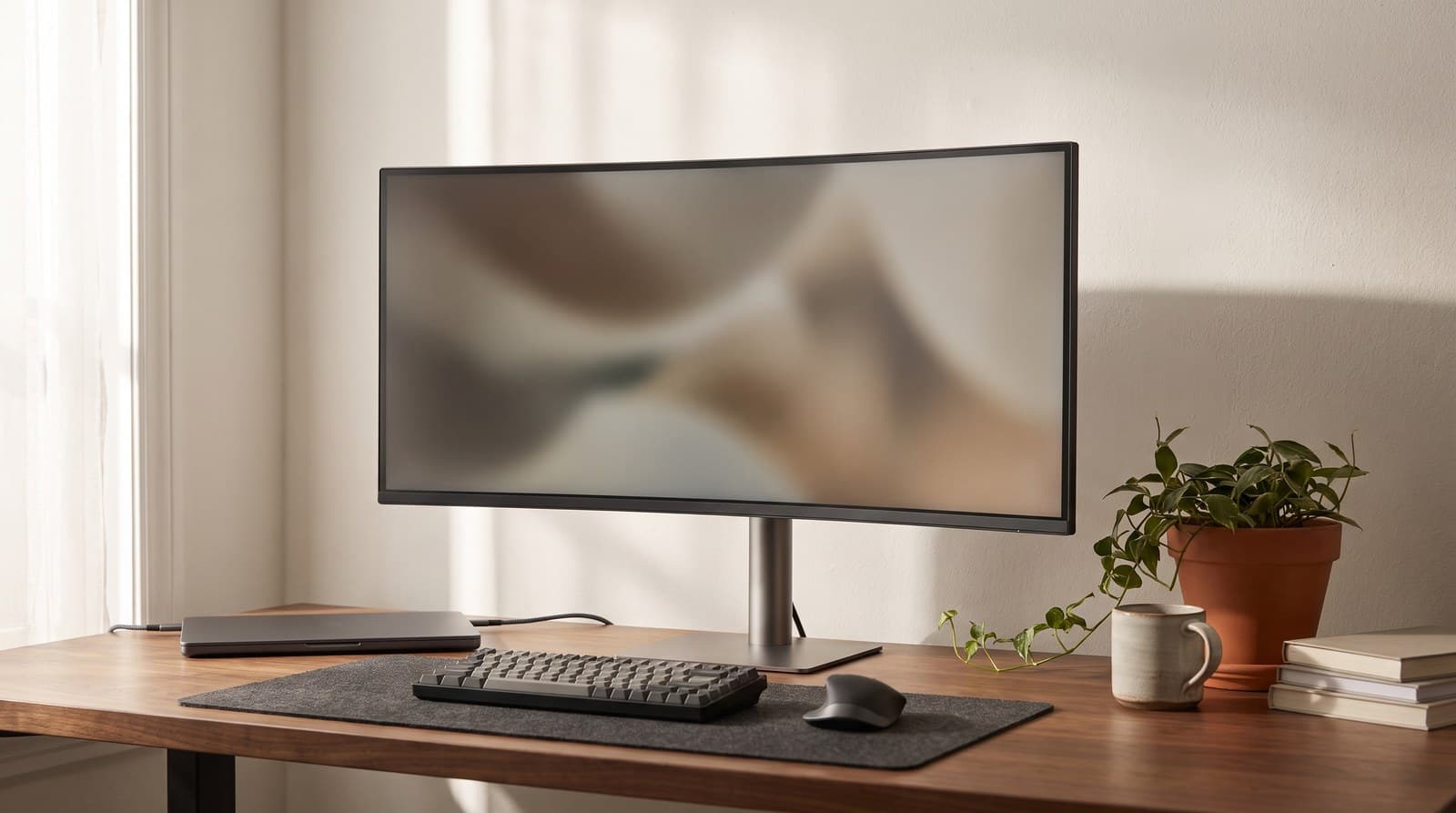
An ultrawide is the most persuasive monitor in any showroom and the one most often bought on the wrong number. The resolution looks enormous — 3440 × 1440, 5120 × 2160, 5120 × 1440 — and the instinct is to read those as sharper. They aren't. They're wider.
A 34-inch 3440 × 1440 panel is about 31 inches across, which works out at roughly 110 pixels per inch: exactly the density of the 27-inch 1440p monitor you may already own, and well short of a 27-inch 4K screen. A 49-inch super ultrawide is the same ~109 ppi, because it is literally two 27-inch 1440p panels with the bezel deleted. That's the honest frame for this whole category. You are buying continuous width, and width is genuinely worth buying — but nobody prints the pixel-density number, so we've put it in the comparison table.
Two other specs decide whether you're happy in month six. The first is panel-only weight, the figure with the stand removed, because it's what a monitor arm is rated against and it's absent from nearly every retail listing. It runs from 13 to 19.4 pounds here, which spans the limit of a lot of cheap gas-spring arms. The second is what the ports actually do: two of these screens have USB-C sockets that carry no video at all, and one of those is the most expensive panel on the list.
Six picks across a $250-to-$2,250 ladder, from 34 to 49 inches, every figure taken off a manufacturer spec sheet rather than a retail listing.
Our top picks at a glance
- 1
- 2
- 3
- 4
- 5
- 6
How we chose
- Pixel density calculated from the real panel width, not the headline resolution — it is the number that explains why ultrawides don't look sharper than the 27-inch screen you already own
- Panel-only weight taken from the manufacturer spec sheet, because that is the figure a monitor arm is rated against and the one every retail listing hides
- How much dock is built in: USB-C or Thunderbolt power delivery in watts, KVM switching, Ethernet — and, just as importantly, when the USB-C port carries no video at all
- Curvature radius stated for every pick, since 800R and 3800R are different products sold under the same word
- Manufacturer-rated brightness quoted plainly, including the full-screen figure for OLED panels rather than the small-highlight peak
- Stand adjustability read off spec sheets — measured height travel, swivel and tilt, plus the VESA pattern for anyone planning to mount it
Our picks come from spec research, long-term owner feedback, and category expertise — not sponsorships. Read the full methodology.
Compared side by side
| Product | Award | Size & resolution | Pixel density | Panel weight | Typical price |
|---|---|---|---|---|---|
| Dell UltraSharp U3425WE | Best Overall | 34 in, 3440 × 1440 | 110 ppi | 17.2 lb | $770–1,050 |
| Dell S3425DW | Best Value | 34 in, 3440 × 1440 | 109 ppi | 15.2 lb | $330–380 |
| LG 34WQ60C-B | Best Budget | 34 in, 3440 × 1440 | 110 ppi | 13.0 lb | $250–300 |
| LG UltraGear 34GS95QE-B | Best for Gaming | 34 in, 3440 × 1440 | 110 ppi | 13.0 lb | $700–830 |
| Dell UltraSharp U4025QW | Best for Replacing Two Monitors | 40 in, 5120 × 2160 | 140 ppi | 18.4 lb | $1,500–2,250 |
| Samsung Odyssey OLED G9 (G95SD) | Best Super Ultrawide | 49 in, 5120 × 1440 | ~109 ppi | 19.4 lb | $1,200–1,900 |
1. Best Overall
Dell UltraSharp U3425WE
Typically $770–1,050
- One laptop, one cable, and no separate dock on the desk
- Two computers sharing one keyboard, mouse and screen
- Work desks where the monitor should also be the network jack
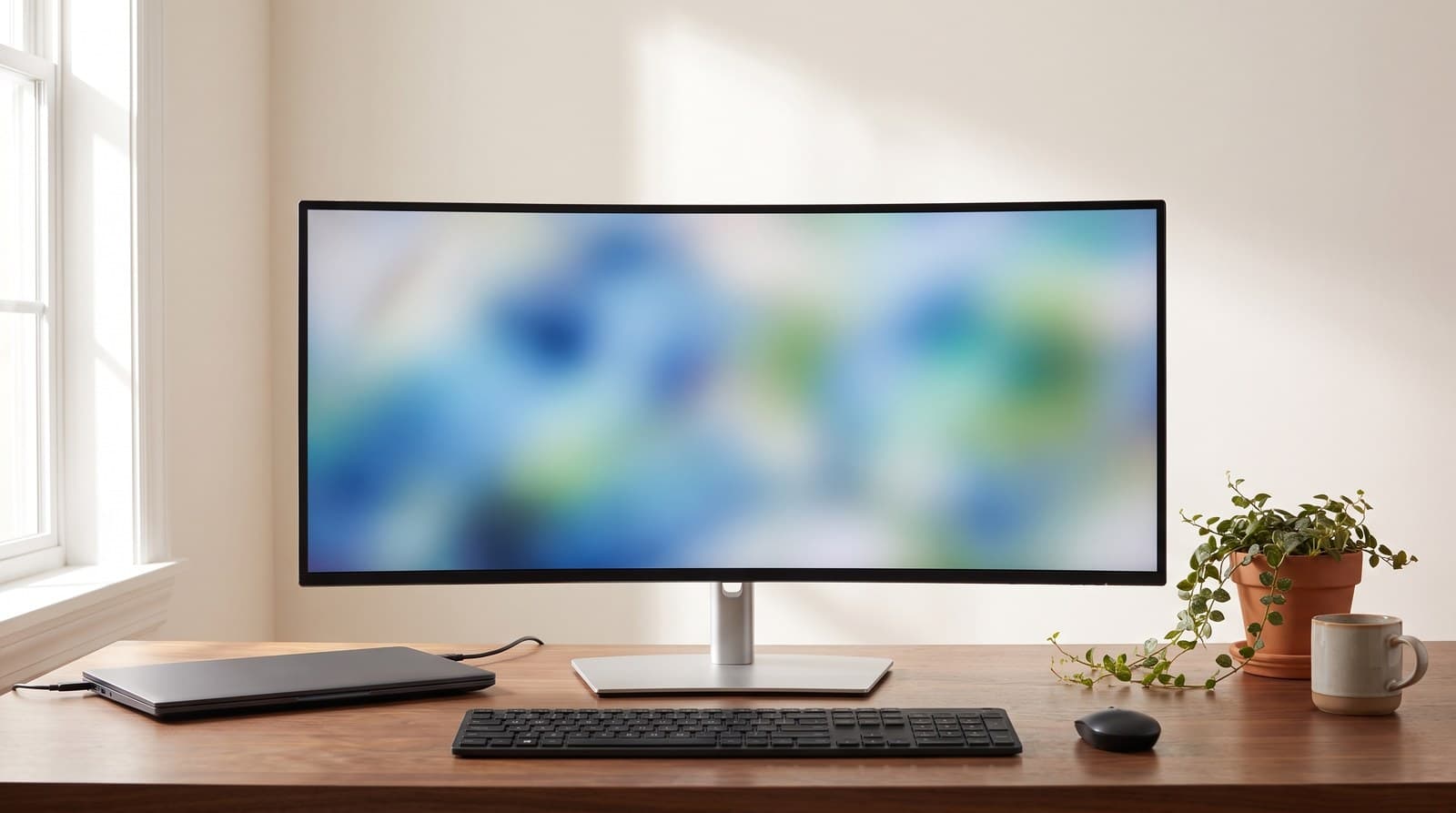
This is the ultrawide that stops being a monitor purchase and starts being a docking-station purchase, and once you price it that way the number looks different. The panel is a 34.1-inch 3440 × 1440 IPS Black — Dell's higher-contrast IPS variant, rated at 2,000:1 native rather than the 1,000:1 an ordinary IPS gives you — on a gentle 1900R curve at 120 Hz, 300 nits, 98% DCI-P3 and 100% sRGB. At 110 pixels per inch it is exactly as sharp as a 27-inch 1440p screen, which is the honest way to think about every 34-inch ultrawide: you are buying a third of a monitor's worth of extra width, not a sharper picture.
The back is where the money goes. A single Thunderbolt 4 upstream port carries video, data and up to 90 W of charging, which covers most 14-inch laptops and keeps a 16-inch one topped up between bursts. Around it sit five USB-A ports, four more USB-C, HDMI 2.1, DisplayPort 1.4, a 2.5 Gb Ethernet jack and an auto KVM that follows whichever input you're looking at, so a work laptop and a personal desktop can share one keyboard without a switch box on the desk. The stand gives 5.91 inches of height travel and ±30° of swivel, and the whole thing is covered for three years with Advanced Exchange. Two honest caveats: 300 nits is unremarkable next to the 450 the 40-inch model manages, and the 8 ms response time (5 ms in fast mode) means the 120 Hz makes scrolling pleasant rather than making this a gaming screen.
What we like
- Thunderbolt 4 with 90 W charging, 2.5 Gb Ethernet and an auto KVM — a $200-plus dock built into the back
- IPS Black at 2,000:1, roughly double a standard IPS panel
- Three-year Advanced Exchange warranty and 5.91 in of height travel
Worth knowing
- 300 nits is merely adequate if your desk faces a window
- 8 ms response — the 120 Hz is for smooth scrolling, not for games
- You are paying for the dock, so it's poor value if nothing ever unplugs
- Size & resolution
- 34.1 in, 3440 × 1440 (110 ppi)
- Panel
- IPS Black, 1900R, 120 Hz, 2,000:1
- Brightness
- 300 cd/m²
- Colour
- 98% DCI-P3, 100% sRGB
- Dock
- Thunderbolt 4 up to 90 W, auto KVM, 2.5 GbE
- Other ports
- HDMI 2.1, DP 1.4, 5 × USB-A, 4 × USB-C
- Stand
- 5.91 in height, ±30° swivel, VESA 100
- Weight
- 17.15 lb panel only, 23.83 lb with stand
2. Best Value
Dell S3425DW
Typically $330–380
- The most ultrawide per dollar with a stand that actually moves
- One-cable laptop docking without paying dock prices
- Dark rooms and dark-mode editors, where contrast beats brightness
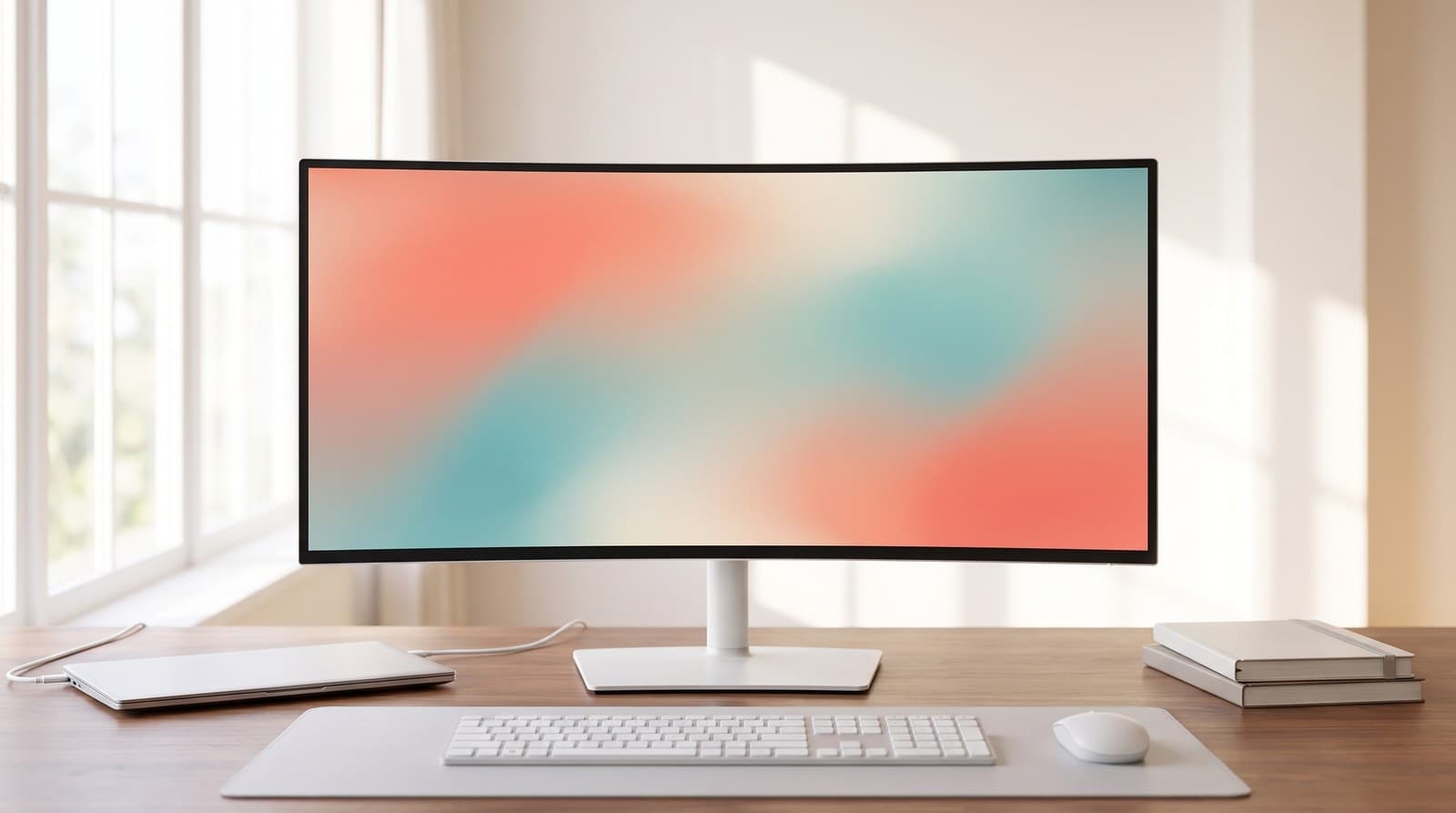
The S3425DW is the pick we would hand to most people who say the word 'ultrawide' without qualifying it. It's a 34-inch 3440 × 1440 VA panel on an 1800R curve at 120 Hz, 300 nits, 95% DCI-P3 and 99% sRGB — and its 3,000:1 native contrast is the highest figure in this entire guide, IPS Black picks included. In a dim room with a dark IDE theme that is the single most visible spec on the list, and it costs a quarter of what the 40-inch model does. Dell lists it at $379.99 and it drifts under $350 regularly.
It docks, modestly and usefully. The upstream USB-C carries DisplayPort Alt Mode plus 65 W of power delivery, enough for essentially every 13- and 14-inch laptop, and it feeds two USB-A ports and a downstream USB-C. Two HDMI ports handle a console or a desktop tower, and there are two 5 W speakers for the days you can't be bothered with headphones. The stand does 5.12 inches of height and a small slant, but no swivel and no pivot. Dell covers it for three years with Advanced Exchange, same as the UltraSharp — what you actually give up is the Ethernet jack, the KVM, a DisplayPort input, and the VA panel's weaker off-axis consistency and slower dark transitions, which show up as smearing in fast motion. For a work screen that occasionally plays a game, none of that is disqualifying.
What we like
- 3,000:1 native contrast, the highest here, at the lowest price with a dock
- 65 W USB-C, dual HDMI and FreeSync Premium at 120 Hz
- 5.12 in of height travel and three-year Advanced Exchange cover
Worth knowing
- VA smearing on dark, fast-moving content
- No Ethernet, no KVM, and no DisplayPort input
- No swivel or pivot on the stand
- Size & resolution
- 34 in, 3440 × 1440 (109 ppi)
- Panel
- VA, 1800R, 120 Hz, 3,000:1
- Brightness
- 300 cd/m²
- Colour
- 95% DCI-P3, 99% sRGB
- Dock
- USB-C 65 W, 2 × USB-A, 1 × USB-C down
- Other ports
- 2 × HDMI, 2 × 5 W speakers
- Stand
- 5.12 in height, ±4° slant, VESA 100
- Weight
- 15.2 lb panel only, 20.68 lb with stand
3. Best Budget
LG 34WQ60C-B
Typically $250–300
- Getting to 3440 × 1440 for the least money possible
- Anyone who already owns a monitor arm
- Desks driven by a desktop tower, where USB-C is irrelevant
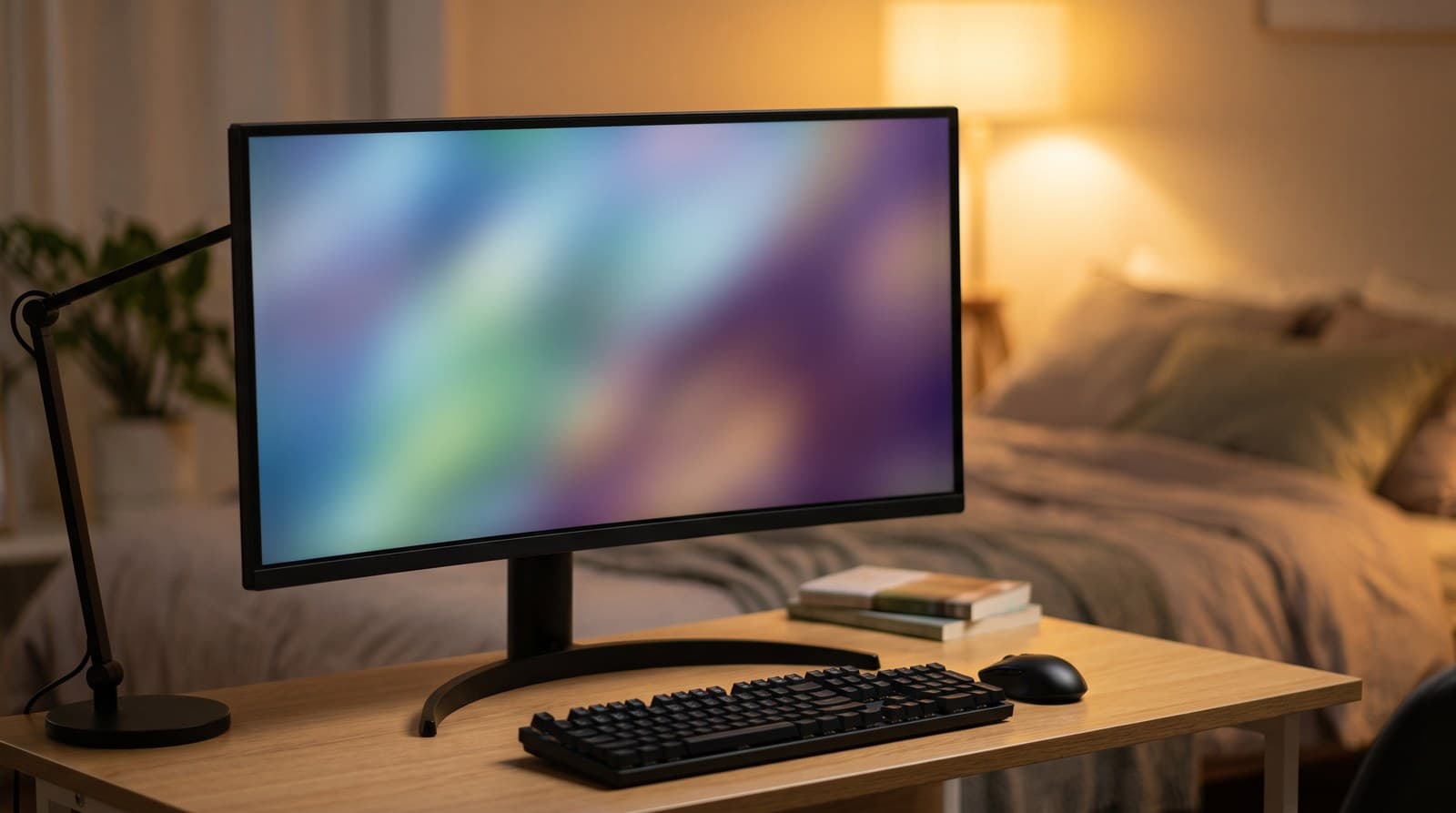
This is the honest floor of the category, and it is worth knowing exactly what the floor costs you. You get a genuine 34-inch 3440 × 1440 IPS panel — the same 110 ppi and the same amount of desktop as the Dell UltraSharp — at 300 nits, 99% sRGB and HDR10, on a very gentle 3800R curve that reads almost flat and suits spreadsheets better than the deep gaming curves do. LG lists it at $499.99 and it sells for around $250–300, which is roughly what a decent 27-inch 1440p monitor costs.
Three things pay for that. It runs at 60 Hz, so scrolling is noticeably less smooth than everything else here. There is no USB-C at all — two HDMI inputs, one DisplayPort and a headphone jack, which means no single-cable laptop setup, no charging and no hub. And the stand tilts and nothing else, so the screen sits where LG decided it sits. That last one is the important one and it is also the cheapest to fix: the panel is 13 pounds bare with a 100 × 100 VESA pattern, which is the easiest load in this guide for a monitor arm, and a $40 arm buys back the height adjustment, the swivel and the desk space underneath. Budget for it as part of the purchase and this becomes a genuinely sensible buy rather than a compromise.
What we like
- Full 3440 × 1440 IPS at roughly the price of a 27-inch 1440p screen
- 13 lb bare — the lightest panel here, and easy for any arm to hold
- 3800R is barely curved, which suits spreadsheets and straight lines
Worth knowing
- 60 Hz, and you will feel it when scrolling
- No USB-C — no single-cable laptop docking, no charging, no hub
- Tilt-only stand; plan on an arm
- Size & resolution
- 34 in, 3440 × 1440 (110 ppi)
- Panel
- IPS, 3800R, 60 Hz, 1,000:1
- Brightness
- 300 cd/m²
- Colour
- 99% sRGB, HDR10
- Dock
- None — no USB-C
- Other ports
- 2 × HDMI, DisplayPort, 3.5 mm out
- Stand
- Tilt only, VESA 100
- Weight
- 13.0 lb panel only, 15.2 lb with stand
4. Best for Gaming
LG UltraGear 34GS95QE-B
Typically $700–830
- Evening gaming where response time and contrast decide everything
- Dark rooms — this is not a screen for a sunlit desk
- Anyone who wants one screen to do work and games without compromise on the games
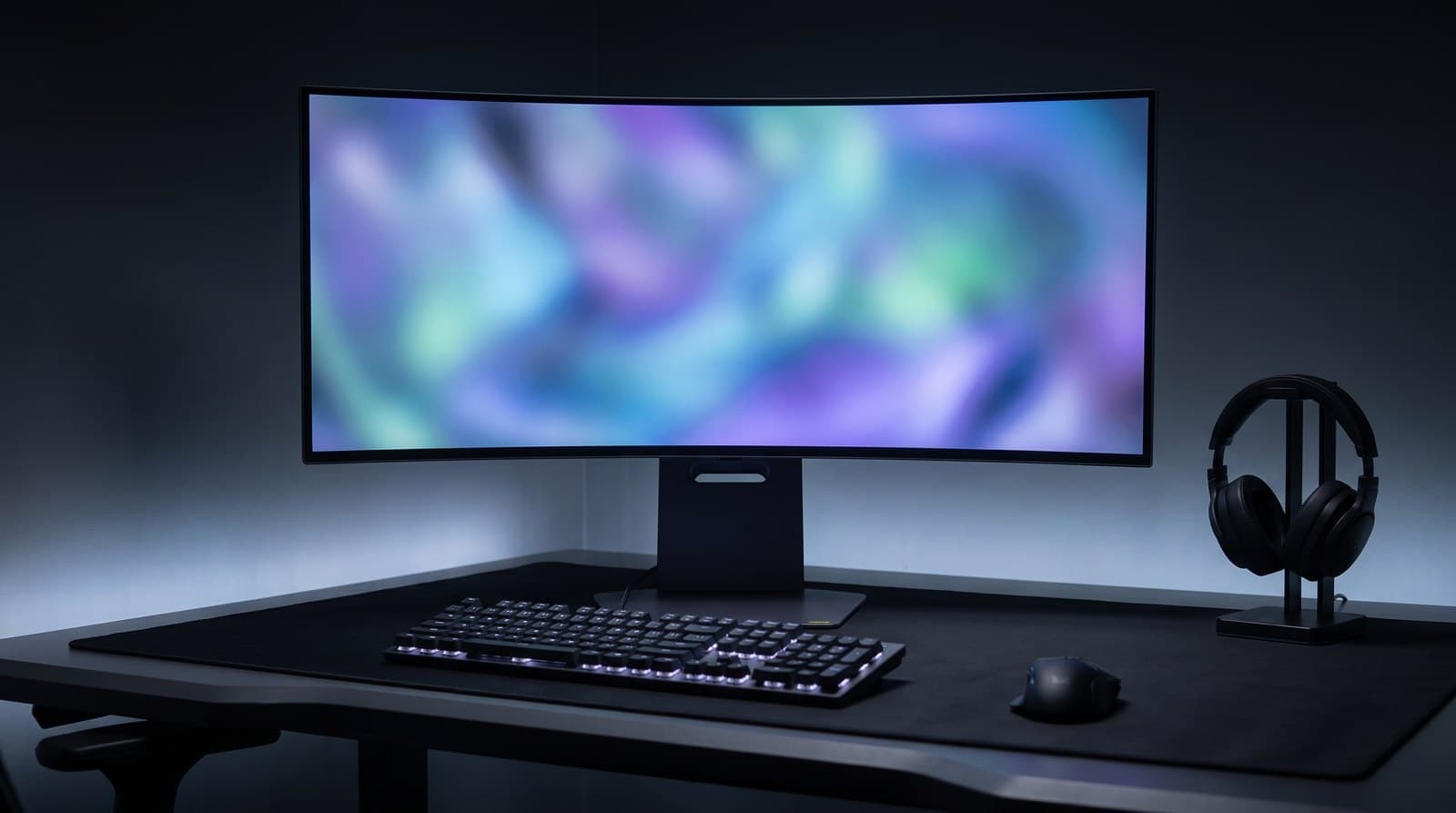
OLED is the reason to want a gaming ultrawide, and the 34GS95QE-B is the version of it that has stopped being absurdly expensive. LG lists it at $1,299.99 and it sits around $700–830 in black most of the year. It's a 34-inch 3440 × 1440 WOLED panel on an aggressive 800R curve — the deepest here, and it genuinely wraps at desk distance — running 240 Hz with a 0.03 ms grey-to-grey response, DisplayHDR True Black 400, 98.5% DCI-P3, G-Sync Compatible and FreeSync Premium Pro. Rated contrast is 1,500,000:1, which is OLED's way of saying black pixels emit nothing at all. Nothing on an LCD looks like this in a dark room.
The trade-offs are real and worth stating before you spend the money. Full-screen white brightness is 275 nits — lower than every LCD in this guide — and it only reaches its headline peaks on small highlights covering a few percent of the screen, so a bright room genuinely undoes it. And LG's WOLED subpixel layout isn't the RGB stripe that Windows text rendering assumes, so fine text can show faint colour fringing; most people stop noticing within a week, but if you read and write eight hours a day it is a reason to buy an IPS panel instead. Ports are two HDMI 2.1, DisplayPort 1.4 and a USB hub — there's no USB-C docking here, so a laptop needs an adapter or a separate dock. The stand does height, tilt and swivel, and at 13 pounds bare the panel is as arm-friendly as the budget LG.
What we like
- 240 Hz at 0.03 ms with per-pixel OLED contrast — the best motion here by a distance
- 800R wrap and 98.5% DCI-P3, both G-Sync and FreeSync certified
- 13 lb bare panel, and a stand that does height, tilt and swivel
Worth knowing
- 275 nits full-screen — a dark-room screen, not a bright-room one
- WOLED subpixel layout can fringe fine text
- No USB-C: DisplayPort or HDMI only
- Size & resolution
- 34 in, 3440 × 1440 (110 ppi)
- Panel
- WOLED, 800R, 240 Hz, 0.03 ms, 1.5M:1
- Brightness
- 275 cd/m² full screen; peaks on small highlights
- Colour
- 98.5% DCI-P3, DisplayHDR True Black 400
- Dock
- None — USB hub only, no USB-C video
- Other ports
- 2 × HDMI 2.1, DisplayPort 1.4
- Stand
- Height, tilt and swivel, VESA 100
- Weight
- 13.0 lb panel only, 20.5 lb with stand
5. Best for Replacing Two Monitors
Dell UltraSharp U4025QW
Typically $1,500–2,250
- Genuinely retiring a dual-monitor setup, bezel and all
- Two windows at full size with no compromise on either
- A laptop that needs 140 W and an Ethernet jack from one cable
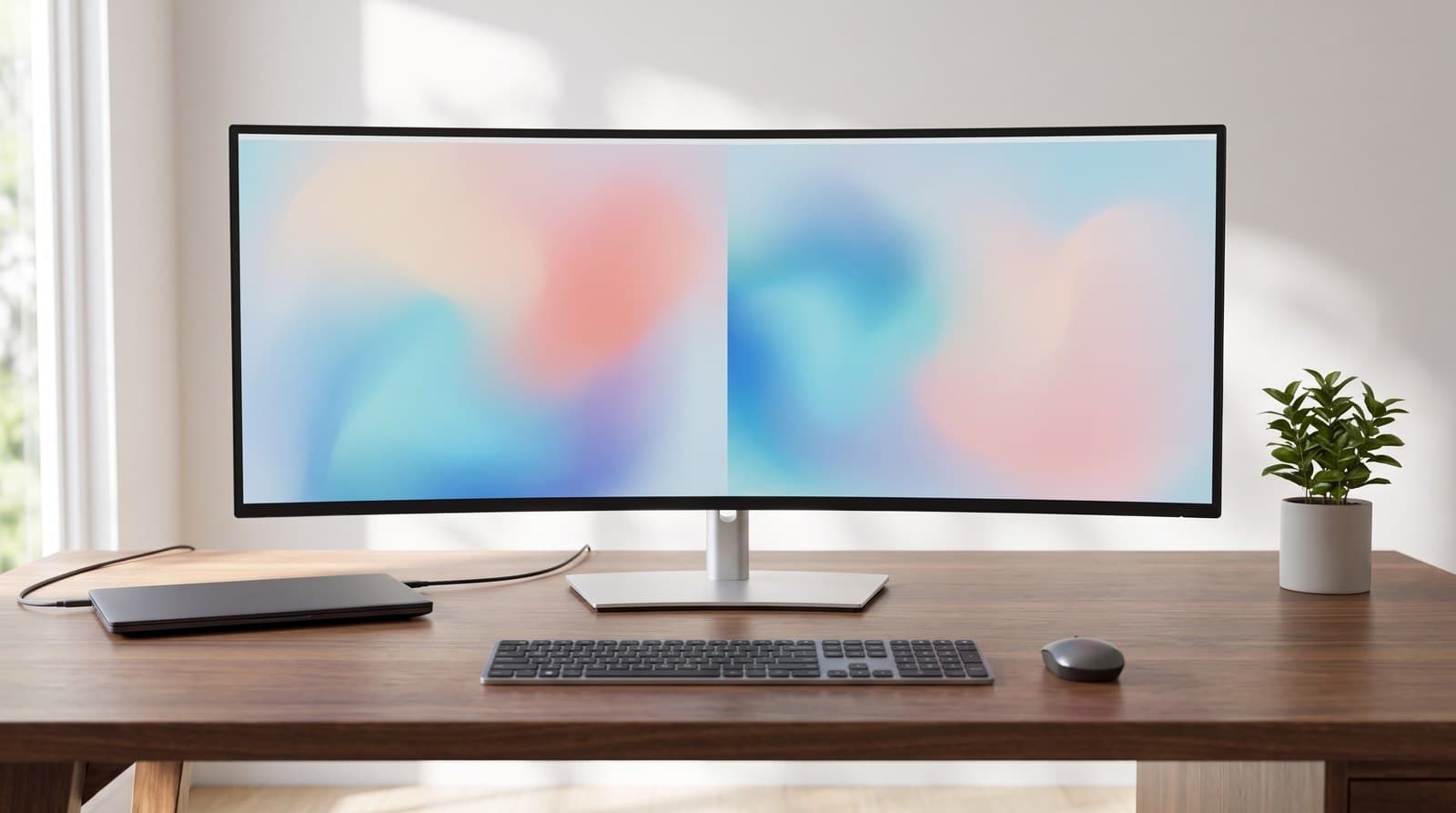
The 40-inch 5K2K is the only shape in this guide that solves the dual-monitor problem outright, and the reason is arithmetic. 5120 × 2160 is two 2560 × 2160 windows side by side — each one taller than a 1440p screen and nearly as wide — with no bezel down the middle and no window-snapping fights. It is also the only pick here that raises pixel density: 140 ppi against 109–110 everywhere else, which is the difference between text that looks like pixels and text that looks like print. The panel is IPS Black on a 2500R curve at 120 Hz, 450 nits typical with a 600-nit peak, DisplayHDR 600 certified, 99% DCI-P3 and 100% sRGB with a factory Delta E under 2 — the brightest and the most accurate screen on this list.
The connectivity is the most complete of anything here. Thunderbolt 4 upstream carries video, data and 140 W of EPR power delivery, enough to run a 16-inch laptop at full load; a second Thunderbolt 4 daisy-chains a further display; and there's DisplayPort 1.4, HDMI 2.1, five USB-A, two 15 W downstream USB-C, a 2.5 Gb Ethernet jack, a KVM and a pair of 9 W speakers. The stand travels from 18.6 to 24.5 inches with ±30° of swivel, and the warranty is three years with Advanced Exchange and Premium Panel Exchange. The obvious problem is money — Dell lists it at $2,249.99 and street pricing runs $1,500 and up, which is two very good monitors plus a dual arm plus a dock. Buy it because you want one continuous 40-inch surface, not because you added up the parts.
What we like
- 140 ppi — the only pick here that is actually sharper, not just wider
- Thunderbolt 4 at 140 W, 2.5 GbE, KVM and display daisy-chaining
- 450 nits, DisplayHDR 600 and factory Delta E under 2
Worth knowing
- $1,500–2,250 buys two excellent monitors and a dual arm instead
- Nearly 37 inches wide — measure the desk before you order
- 18.4 lb bare needs a heavy-duty arm, not a $40 one
- Size & resolution
- 39.7 in, 5120 × 2160 (140 ppi)
- Panel
- IPS Black, 2500R, 120 Hz, DisplayHDR 600
- Brightness
- 450 cd/m² typical, 600 peak
- Colour
- 99% DCI-P3, 100% sRGB, Delta E <2
- Dock
- Thunderbolt 4 up to 140 W, KVM, 2.5 GbE
- Other ports
- HDMI 2.1, DP 1.4, 5 × USB-A, 2 × USB-C 15 W
- Stand
- 18.6–24.5 in height, ±30° swivel, VESA 100
- Weight
- 18.41 lb panel only, 26.94 lb with stand
6. Best Super Ultrawide
Samsung Odyssey OLED G9 (G95SD)
Typically $1,200–1,900
- Immersive sim and racing games, where 32:9 is the whole point
- Three or four windows genuinely side by side
- A dark room — the matte coating and OLED contrast reward it
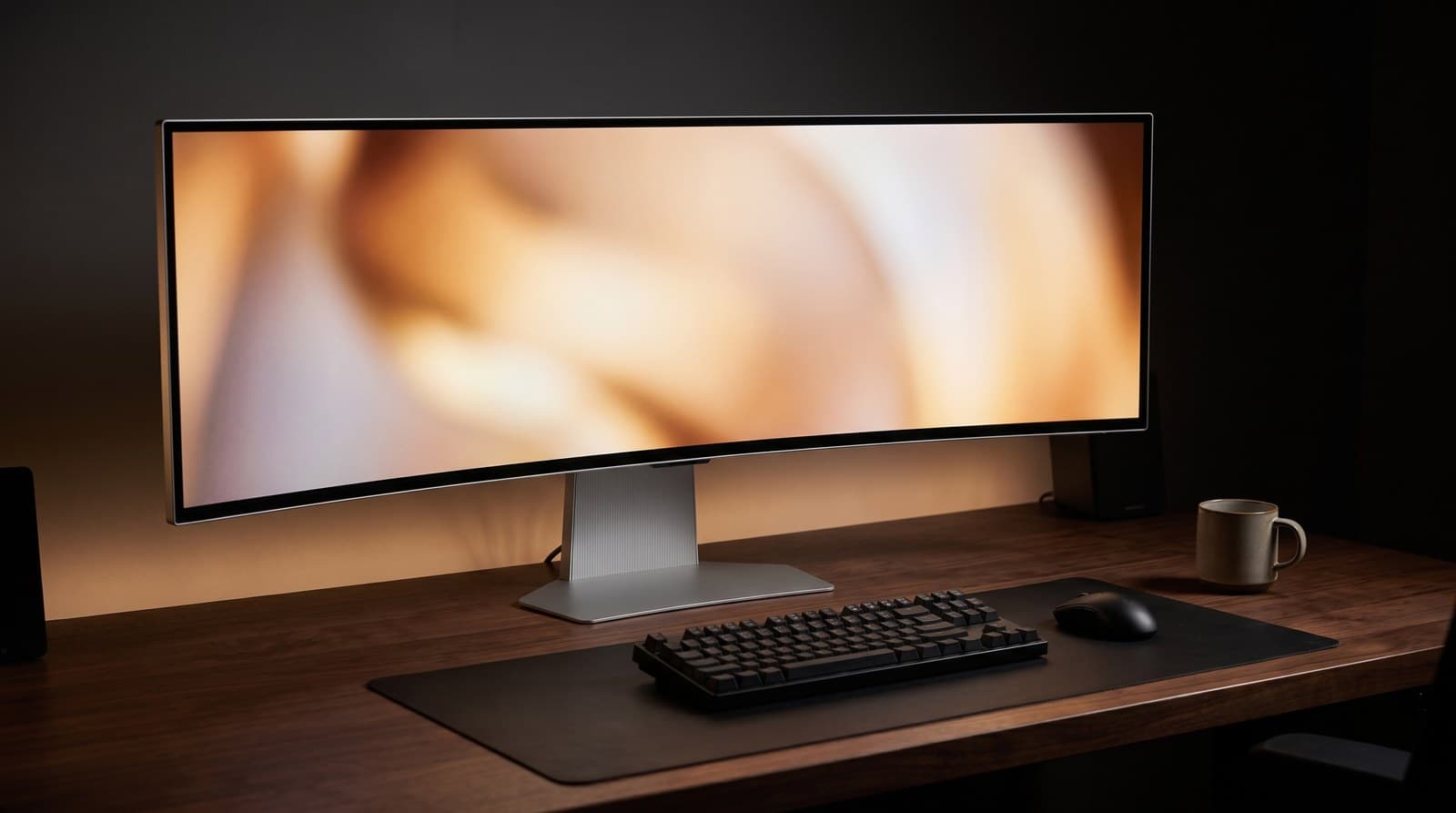
A 49-inch super ultrawide is two 27-inch 1440p monitors fused into one panel, and that isn't a metaphor: 5120 × 1440 is literally 2560 × 1440 twice, at the same ~109 ppi, with the bezel deleted. The G95SD does it on a second-generation QD-OLED at 240 Hz with a 0.03 ms response, an 1800R curve, DisplayHDR True Black 400, HDR10+ support and a matte glare-free coating that handles ambient light far better than the glossy QD-OLEDs that came before it. For flight sims, racing and anything with a cockpit, nothing else on this list is close.
Two things deserve flagging before you spend the money. Samsung rates full-screen brightness at 250 nits — the dimmest panel in this guide — so like the LG OLED it is a dark-room screen that reaches its dramatic numbers only on small highlights. And the USB-C ports do not carry video: there's one USB-C upstream for data and two downstream, so the only display inputs are DisplayPort 1.4, HDMI 2.1 and a micro-HDMI 2.1. On the most expensive-looking screen here, single-cable laptop docking simply isn't available, which is worth knowing if you assumed a $1,500 monitor would charge your MacBook. In its favour: it ships with the Gaming Hub and streaming apps built in with a remote, the stand does 120 mm of height plus tilt and swivel, and Samsung covers it for three years. At 19.4 pounds bare it is also the heaviest panel here — check any arm's rating, and check that the arm is actually rated for a 49-inch screen's leverage, not just its weight.
What we like
- 240 Hz QD-OLED at 0.03 ms — the most immersive gaming screen here
- Matte glare-free coating, a real improvement on earlier glossy QD-OLEDs
- Three-year warranty, and a genuine dual-27-inch workspace with no bezel
Worth knowing
- 250 nits full screen, and the USB-C ports carry no video at all
- 19.4 lb and nearly four feet wide — arm and desk both need checking
- 32:9 is badly supported by a lot of software and most games' UI
- Size & resolution
- 49 in, 5120 × 1440, 32:9 (~109 ppi)
- Panel
- QD-OLED, 1800R, 240 Hz, 0.03 ms
- Brightness
- 250 cd/m² full screen; peaks on small highlights
- Colour
- DisplayHDR True Black 400, HDR10+, matte coating
- Dock
- None — USB-C is data only, no video
- Other ports
- DP 1.4, HDMI 2.1, micro-HDMI 2.1, 3 × USB-C
- Stand
- 120 mm height, tilt and swivel, VESA 100
- Weight
- 19.40 lb panel only, 27.78 lb with stand
The verdict
For a work desk the Dell UltraSharp U3425WE is the buy, and it makes most sense if you price it as a monitor plus the Thunderbolt dock you were otherwise going to buy: 90 W of charging, 2.5 Gb Ethernet, an auto KVM and a three-year warranty is a lot of hardware bolted to the back of a good IPS Black panel.
If you're never going to use that, the Dell S3425DW is the smarter spend by a wide margin. It's the same 3440 × 1440 width, the highest native contrast in this guide at 3,000:1, 65 W of single-cable charging and a stand that actually rises — for around a third of the price. It's the pick we'd give most people who asked without qualifying the question.
From there, buy for the specific thing you want. The LG 34WQ60C-B is the honest floor at $250–300 — accept 60 Hz and no USB-C, and put the 13-pound panel on a cheap arm to undo the tilt-only stand. The LG UltraGear 34GS95QE-B is the one to get if games matter more than spreadsheets, as long as your room is dark and you can live with WOLED's text fringing. The Dell UltraSharp U4025QW is the only pick that genuinely retires a dual-monitor setup, and the only one that's actually sharper at 140 ppi — it just costs what two good monitors and an arm would. And the Samsung Odyssey OLED G9 is the immersion play, brilliant for anything with a cockpit, dim for anything else, and unable to drive itself over USB-C.
Two things to settle before you order. Measure the width of your desk, not just the depth — a 40-inch panel is 37 inches wide and the 49-inch is close to four feet. And decide whether the screen is also your dock: if it is, you may not need a separate one, and if it isn't, the money is better spent on contrast and an arm than on ports you'll never plug into.
Frequently asked questions
It depends on which problem annoys you more, and we'd rather say that than sell you the more expensive screen. Two 27-inch 1440p panels cost roughly $400 together, give you more total pixels than a 34-inch ultrawide, and hard-separate your contexts — reference on the left, work on the right, no window management required. A 34-inch ultrawide gives you about 1.33 screens' worth of width for $250–1,050, and what it actually buys is one continuous surface with no bezel in the middle, one power cable, one video cable and one arm instead of two. Ultrawide wins clearly for wide timelines, long spreadsheets, DAWs and any game with a cockpit. Two screens win on total area per dollar. If you're leaning dual, budget for a dual monitor arm as part of the purchase — two factory stands eat a desk.
Because it isn't. A 34-inch 3440 × 1440 panel is about 31 inches wide, which works out at roughly 110 pixels per inch — the same density as a 27-inch 1440p screen, and meaningfully coarser than a 27-inch 4K panel at 163 ppi. A 49-inch 5120 × 1440 super ultrawide is the same ~109 ppi again, because it is literally two of those 27-inch panels side by side. Ultrawide resolution numbers look enormous because they count a much wider screen, not a denser one. The only pick here that changes that is the 40-inch 5120 × 2160, at 140 ppi. If sharpness rather than width is what you're after, a 27-inch 4K desk monitor is the cheaper answer.
Often yes, but check two numbers rather than one. The first is the panel-only weight — the figure without the stand, which is what an arm carries and what almost no retail listing prints. It ranges from 13 pounds for the two LG panels to 19.4 for the 49-inch Samsung, and plenty of cheap gas-spring arms top out around 15 to 20 pounds. The second is width, because a 34- or 49-inch screen puts far more leverage on the clamp and the desk edge than a 27-inch one at the same weight; some arms publish a maximum screen size separately from the weight rating, and it exists for a reason. Every pick here uses a 100 × 100 mm VESA pattern. Our ultrawide monitor arm guide covers the arms rated for this, and it's also the cheapest way to fix a tilt-only stand like the budget LG's.
The number is the radius of the circle the screen is a slice of, in millimetres, so smaller means more curved. 800R is aggressive: at desk distance the far edges genuinely angle toward you, which is superb for games and for a screen you sit close to, and mildly irritating if you spend all day looking at straight lines in a spreadsheet. 3800R is so gentle it reads as flat, which suits design and document work and photographs better. 1800R to 2500R is the middle ground that most work ultrawides pick and the safest default. One practical note: the more curved the panel, the more it wants to be centred in front of you — an aggressive curve viewed off-axis from a shared desk looks noticeably worse than a flat one.
Video, yes — every pick here will drive a Mac over HDMI or DisplayPort, and the USB-C and Thunderbolt models will do it over a single cable. Sharpness is the catch. macOS is built around exact 2× scaling and none of the 3440 × 1440 panels are 2× anything, so text on a 34-inch ultrawide on a Mac looks softer than it does on the MacBook's own screen. It's perfectly usable and millions of people work this way, but if you're a Mac user who reads and writes all day, know that going in. The 40-inch 5120 × 2160 is the one that mostly escapes the problem, because 140 ppi has enough density in hand that a scaled mode still looks crisp. On Windows, none of this applies — set scaling to 100% and everything on this list is the right size.
For a desk you work at, yes. The cheap end of the ultrawide market is full of 29- and 34-inch panels at 2560 × 1080, and on a 34-inch screen that's about 82 pixels per inch — visibly coarse, well below the ~110 ppi everything in this guide manages, and worse than the laptop you'd be plugging into it. The saving is real, usually $100 to $150 against a 3440 × 1440 panel, but text is the thing you look at all day and this is where you'd feel it. If the budget is genuinely capped near $200, a 27-inch 1440p monitor is a better screen than any 1080p ultrawide, and you can add width later.
More than people plan for, and the width matters as much as the depth. A 34-inch ultrawide is about 32 inches wide with its stand and wants roughly 27 to 30 inches of desk depth so you can sit far enough back to see the edges without turning your head. The 40-inch model is 37 inches wide, and the 49-inch Samsung is close to four feet — on a standard 47-inch desk that leaves almost nothing either side. Measure the width of your desk and the depth from the front edge to the wall before you order, and if depth is what you're short of, a monitor arm buys back whatever the factory stand's base occupies — 5.5 inches on the LG 34WQ60C-B and 5.7 on the Dell U4025QW, but only 2.2 on the deeply curved 49-inch Samsung, because roughly four inches of its stand-free depth is the 1800R curve itself. Our guide to sizing a monitor to your desk has the published figures for all three. A deeper or wider desk is the other answer, and often the cheaper one.
Keep building your setup
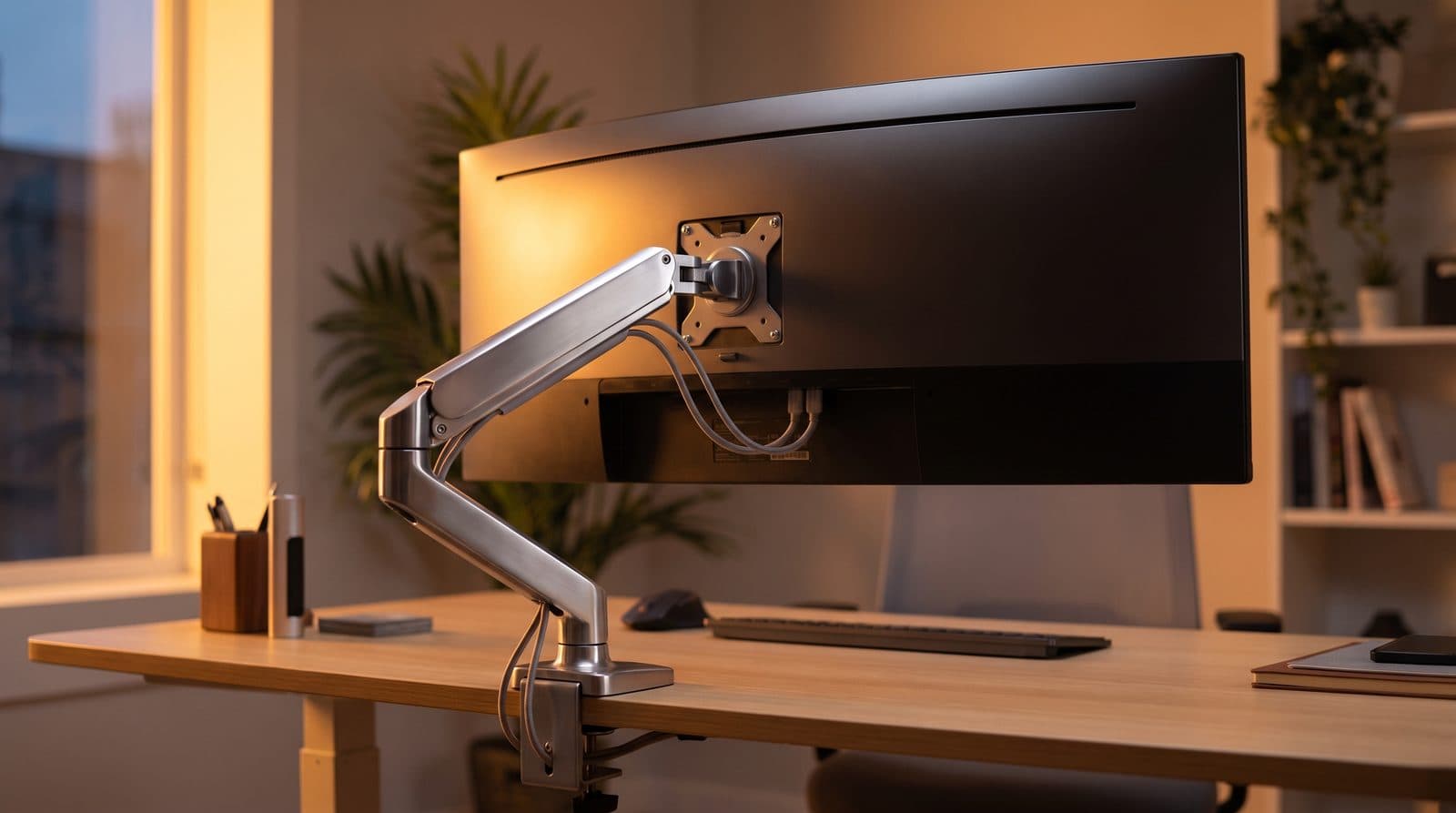
Monitor Arms
The Best Monitor Arms for Ultrawide Monitors in 2026
Ultrawides are heavy, and most arms quietly aren't rated for them. Five arms that hold 34- to 49-inch screens without sagging — matched to monitor weight.
Updated September 11, 2026
Monitors
The Best Monitors for a Home Office in 2026
The desk monitor you stare at for eight hours a day, judged on the three specs that decide it: pixels per inch at the size you're buying, how much dock is built into the back, and whether the stand does anything but tilt.
Updated August 10, 2026
Monitors
What Size Monitor for Your Desk: Width, Not Inches
A 34-inch ultrawide is no taller than a 27-inch monitor, a 32-inch has more screen area than either, and the deepest stand in this guide belongs to the smallest display. Diagonal inches are the one dimension that predicts none of that. Here is how to size a screen from the desk you already own.
Updated September 2, 2026
Get the next guide in your inbox
One short email when we publish or meaningfully update a buying guide. No spam, no daily deals firehose.